

School limits
A Cloud license covers a set number of schools. That number caps how many schools your district can mark as active in Tidal PTC. This page explains how the limit works, what users see if the district goes over it, and how a district admin fixes it. Self-hosted installs have no school limit.
Who this is for
Section titled “Who this is for”District admins on Cloud hosting.
Before you start
Section titled “Before you start”- You need the edit tenant settings permission, which district admins have. See Users and permissions.
How the limit works
Section titled “How the limit works”- All of your district’s schools sync from PowerSchool, but only active schools are used in the app. Inactive schools don’t count toward the limit.
- Your license sets how many schools can be active at once. The number comes from your purchase and is updated when you renew or add licenses.
- In Tenant settings, the Active schools section shows how many you have selected against the limit, for example “3 of 5 licensed schools selected”.
Choose active schools
Section titled “Choose active schools”- Go to Settings > Tenant settings.
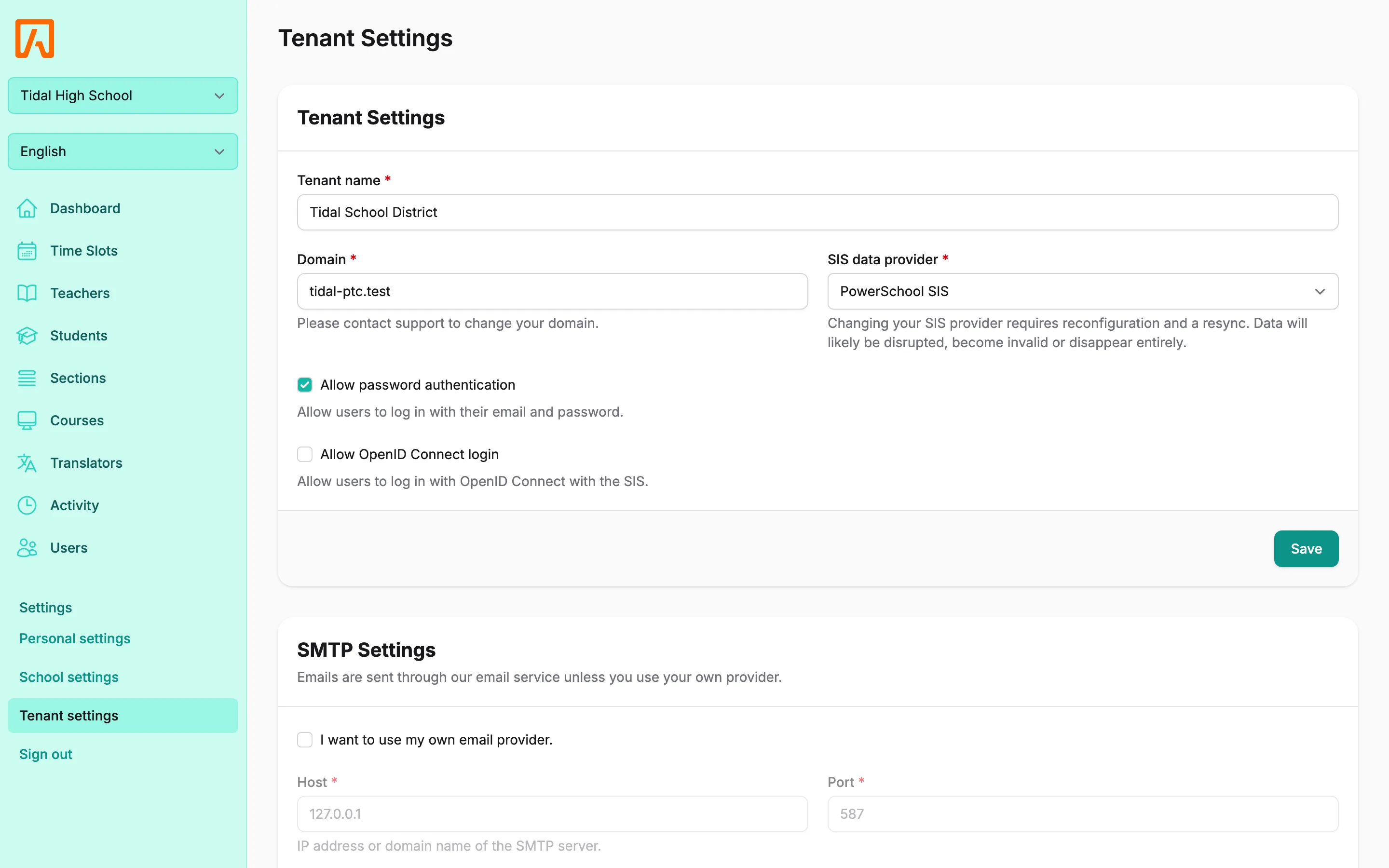
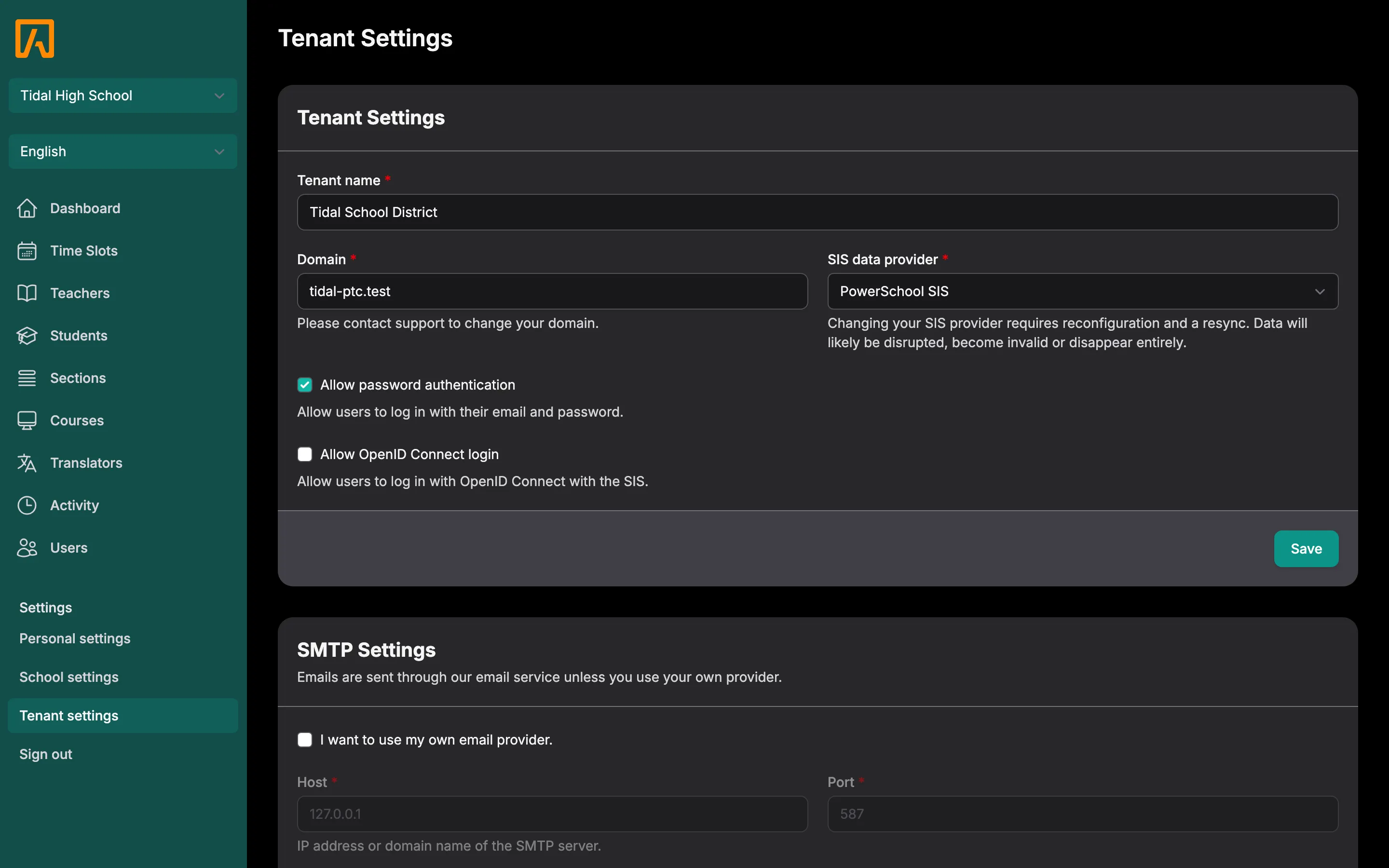
- Under Active schools, check the schools you want to use. Select all and Select none change every checkbox at once.
- Select Save.
If you select more schools than your license covers, saving fails with “Your plan covers N schools. Contact us to add more.” Nothing changes until you select fewer schools or add licenses.
When the district is over its limit
Section titled “When the district is over its limit”A district can end up with more active schools than it is licensed for, for example after renewing with fewer schools. While that’s the case:
- Staff are blocked from the app and see an At full capacity page.
- District admins see how many schools are active and how many are licensed, with a Tenant settings link and, when available, a Request more licenses link.
- Other staff see “Tidal PTC is unavailable for your district right now. Please contact your district administrator.”
- Guardians and students are not affected and can keep booking.
- Settings pages stay available, so a district admin can fix the problem.
To fix it, either deactivate schools in Tenant settings until you are within the limit, or add school licenses (see Buying and renewing). Staff regain access as soon as the active count is at or below the limit.