

Directory
The directory pages (Students, Sections, Courses and Teachers) show the records synced from your SIS for the current school. You use them to look people up, start bookings, set a different teacher for a section, and turn booking on or off for a student, section or course. The data itself comes from the SIS and is not edited here.
Who this is for
Section titled “Who this is for”Office staff and administrators.
Before you start
Section titled “Before you start”- Each menu item and its list page need View list on that record type (Teachers uses View list on Users), and each detail page needs View. Opening the address directly without the permission is refused. Changing booking status or section teachers needs Update on that record type. See Users and permissions.
- Records must be synced from the SIS first. See School settings.
How booking status works
Section titled “How booking status works”Families can only book a conference with a teacher for a student when all of these have booking enabled:
- the student,
- the section the student is enrolled in with that teacher,
- the section’s course.
Anything with booking disabled shows a Booking disabled label. Staff who own time slots outright through the Own time slots permission can be booked by any student whose booking is enabled, regardless of sections.
Students
Section titled “Students”- Select Students. The list shows each student’s Number, Grade and Name, sorted by last name.
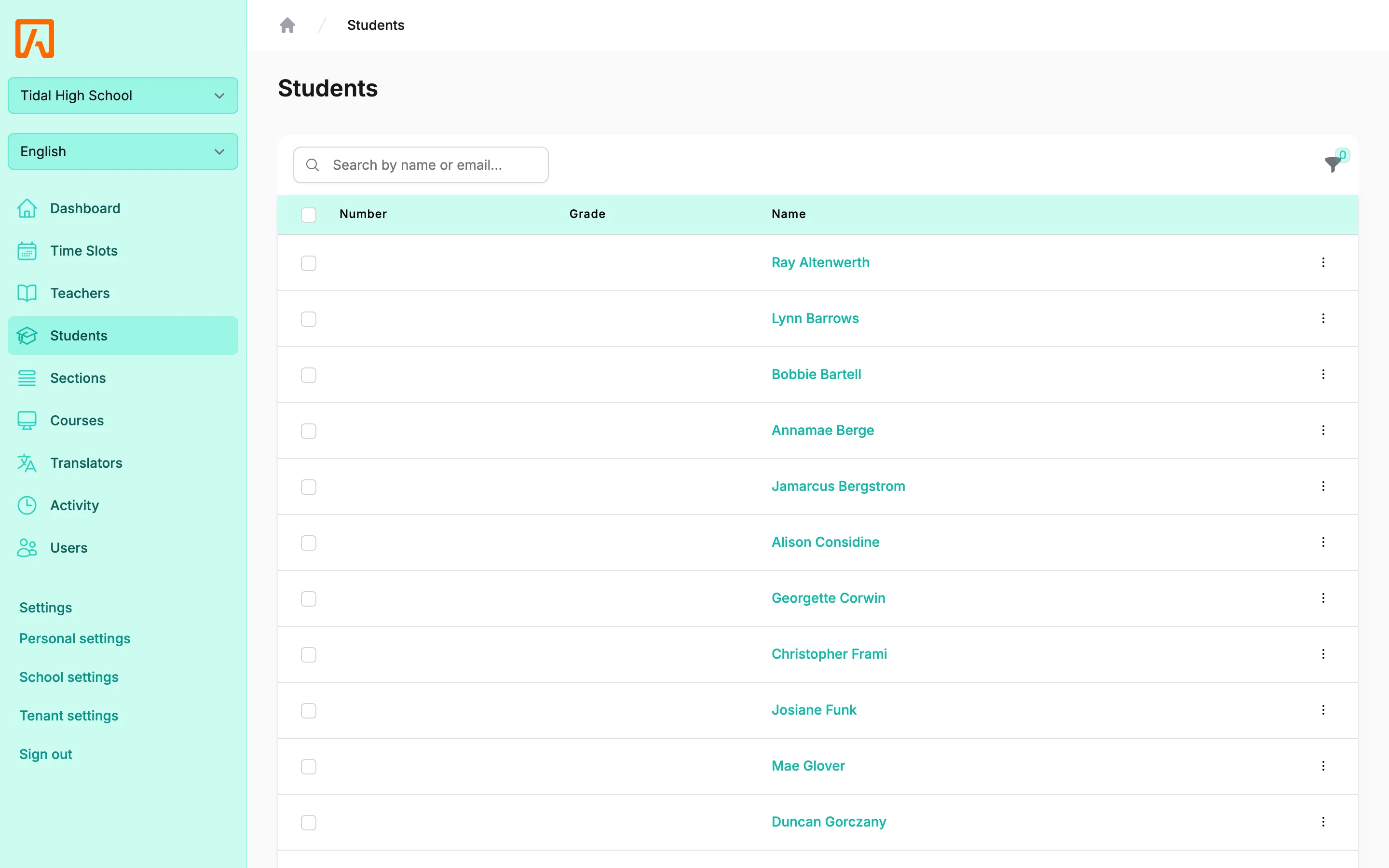
- Search by name or email, or filter by First name, Last name, Email, Grade level or Booking status.
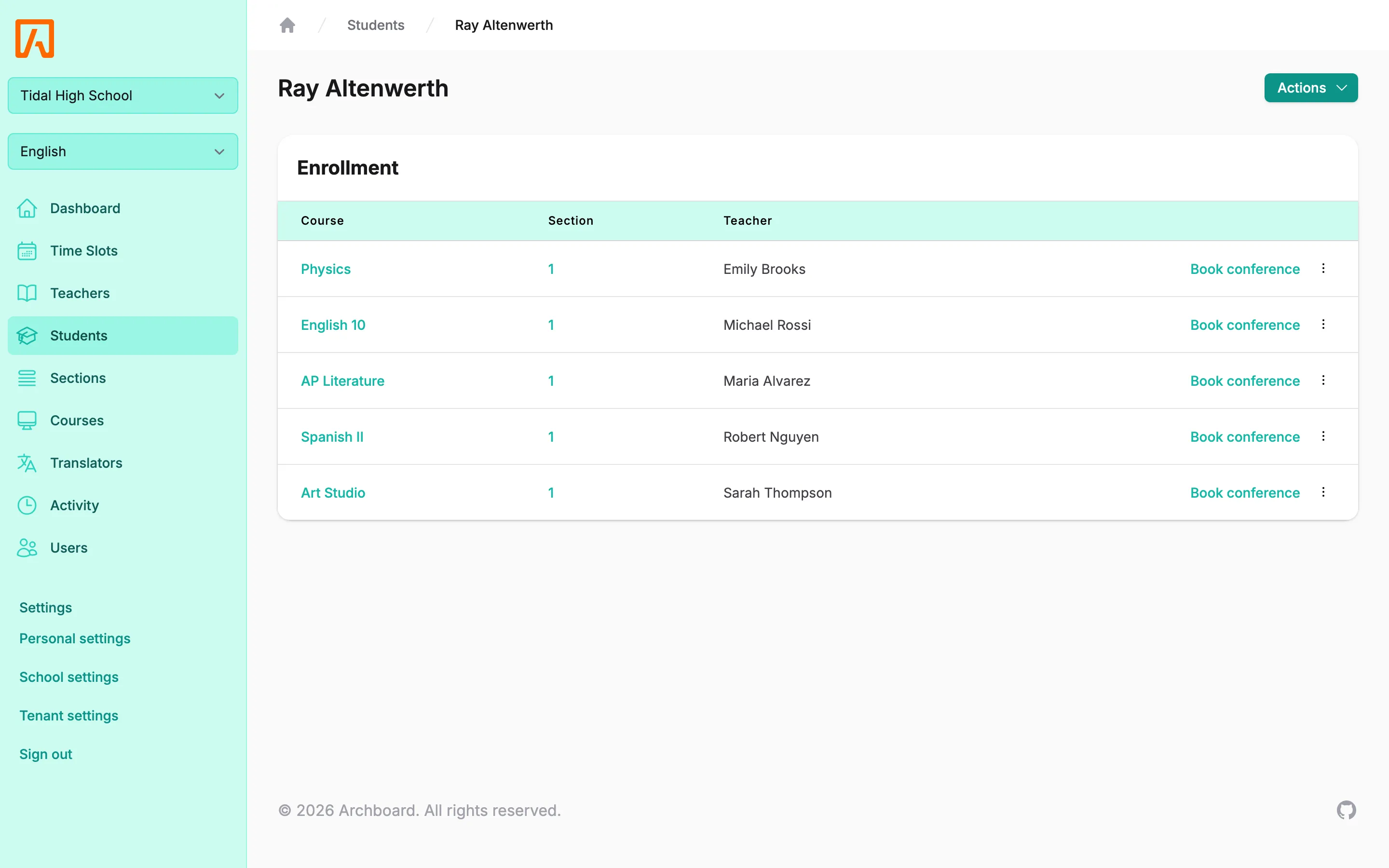
- Select a student to see their Enrollment: each Course, Section and Teacher, with booking status for each.
From a student’s page:
- Book conference on a row books with that section’s teacher. See Booking for families.
- Actions (with Update on Students) has Disable booking or Enable booking and Sync from SIS, which refreshes the student from the SIS right away.
To change booking for many students, check them in the list, open Actions above the table, and select Disable booking or Enable booking.
Sections
Section titled “Sections”Select Sections to see every section with its Course, Section number, Teacher and Enrollment count. Search by course. If you have Edit school settings, Sync from SIS at the top syncs all sections in the background.
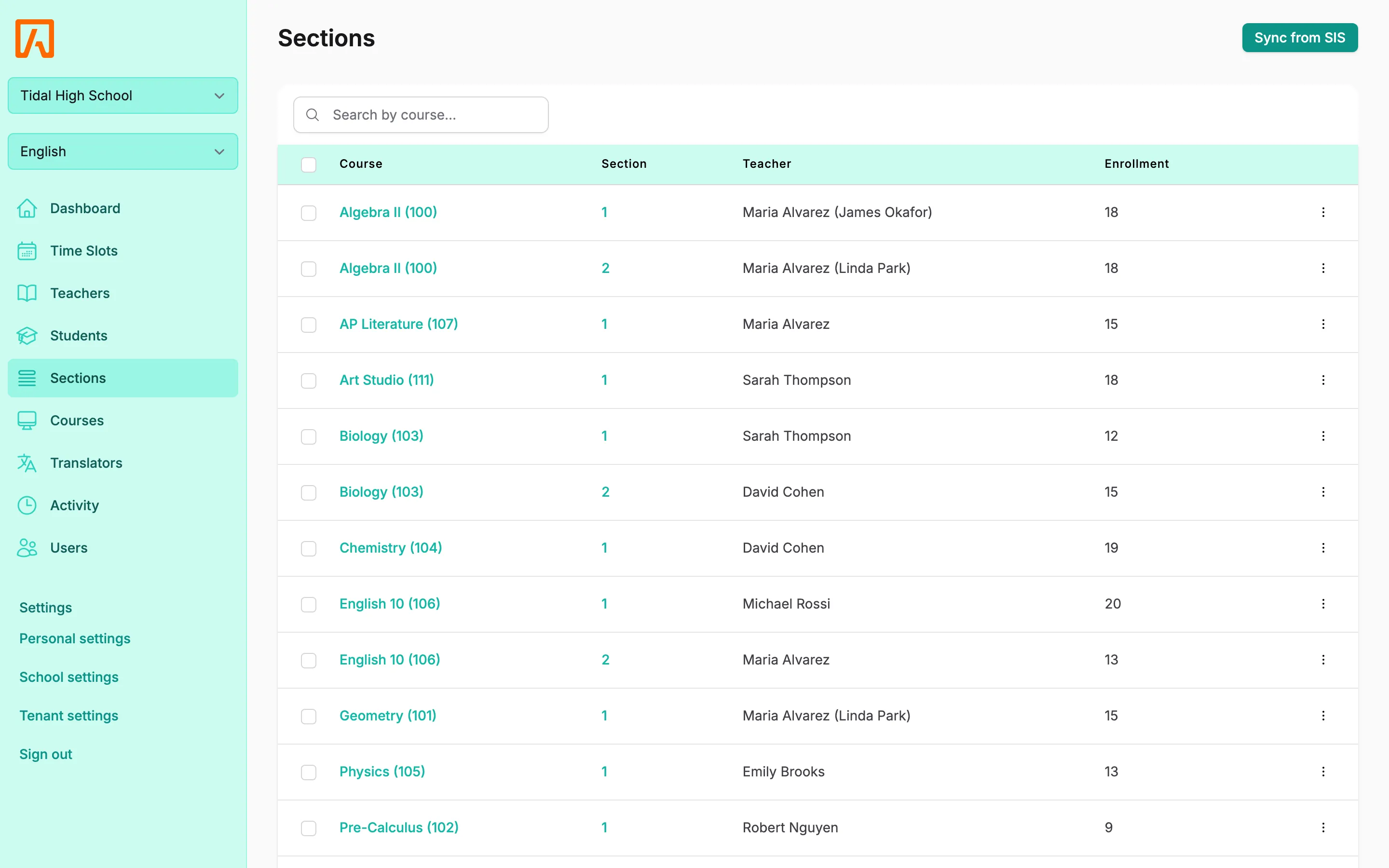
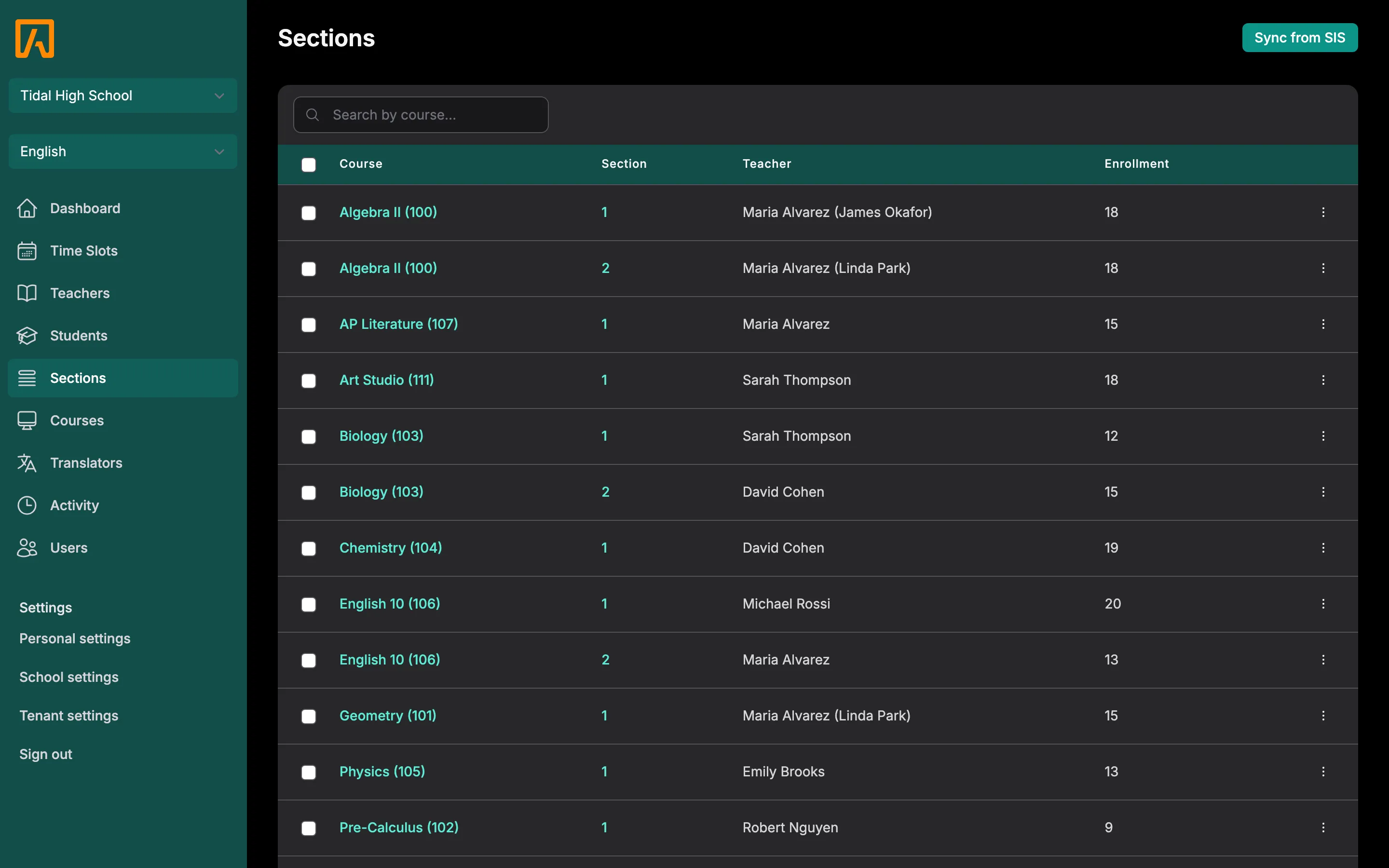
Select a section number to see its enrolled students. The row menu (or Actions on the section page) has:
- Edit section
- Remove teacher override, when an override is set
- Disable section booking or Enable section booking
- Disable course booking or Enable course booking (needs Update on Courses)
- Sync from SIS
Override a section’s teacher
Section titled “Override a section’s teacher”Use an override when someone other than the SIS teacher holds conferences for a section, such as a long-term substitute.
- Open the section’s menu and select Edit section.
- Under Override teacher, search for and choose the staff member.
- Optionally uncheck Section accepts bookings to stop bookings for this section.
- Select Save. You see “Section updated successfully.”
The section then shows the override teacher with the original teacher in parentheses, and Book conference on a student’s page books with the override teacher. To undo it, select Remove teacher override.
Courses
Section titled “Courses”Select Courses to see each course’s Name, Number and number of Sections. Search by course name. If you have Edit school settings, Sync from SIS at the top syncs all courses in the background.
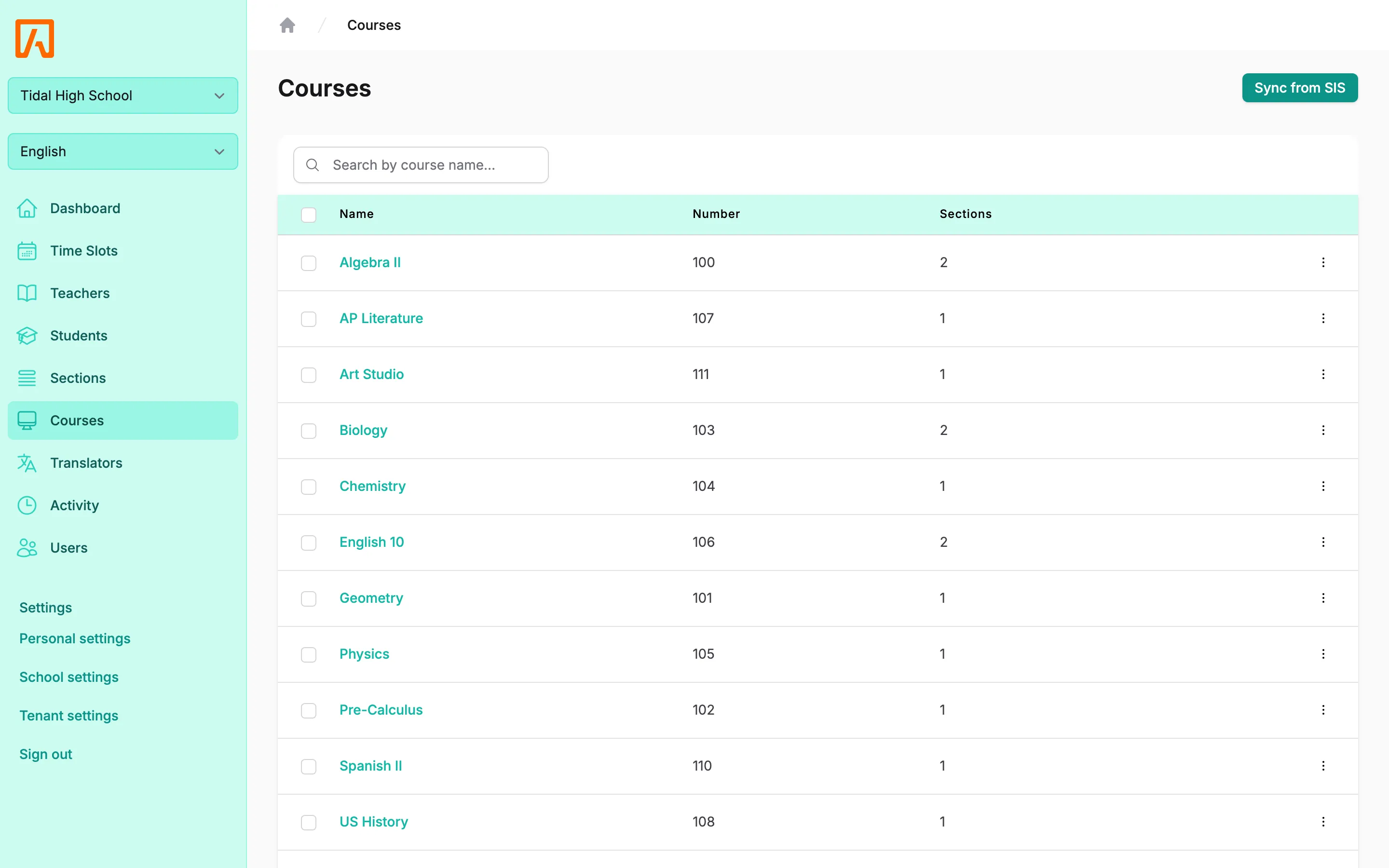
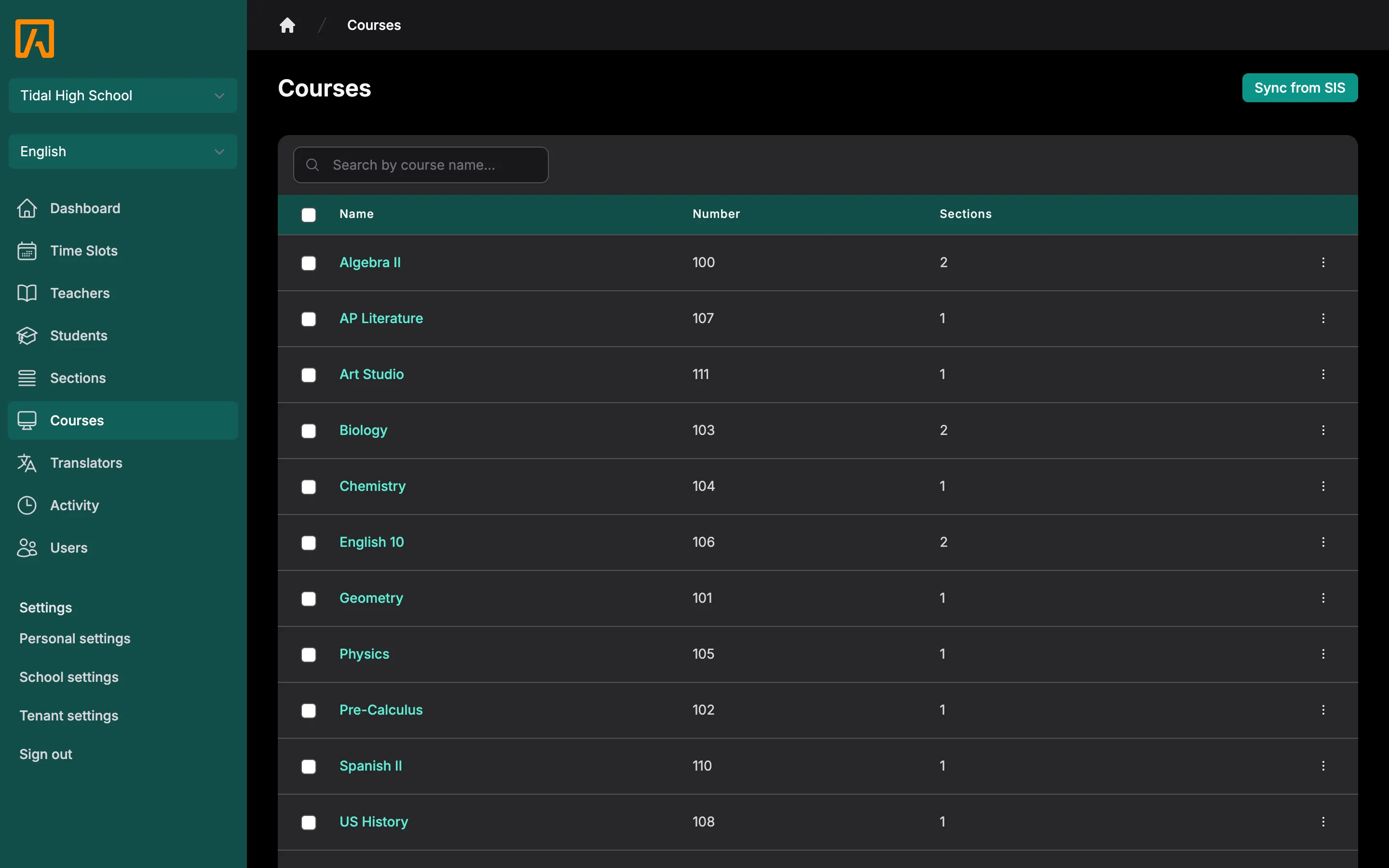
Select a course to see each of its sections with the teacher and enrolled students. Use the row menu or Actions to disable or enable booking for the course, or for a single section. Disabling a course stops bookings for all of its sections.
Teachers
Section titled “Teachers”Select Teachers to see staff who teach a section or are the override teacher for one, with their Email, number of Sections and number of upcoming Time slots.
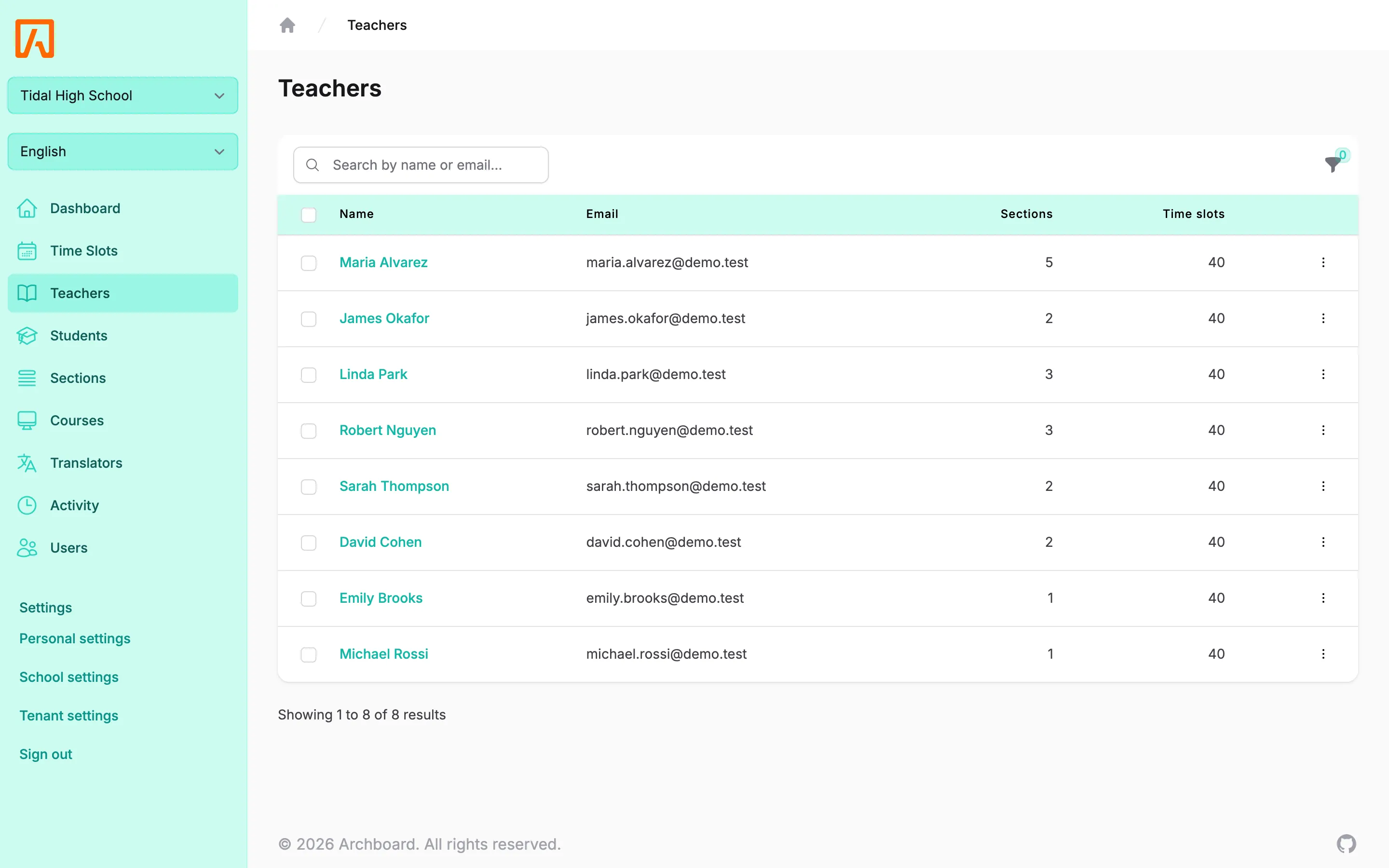
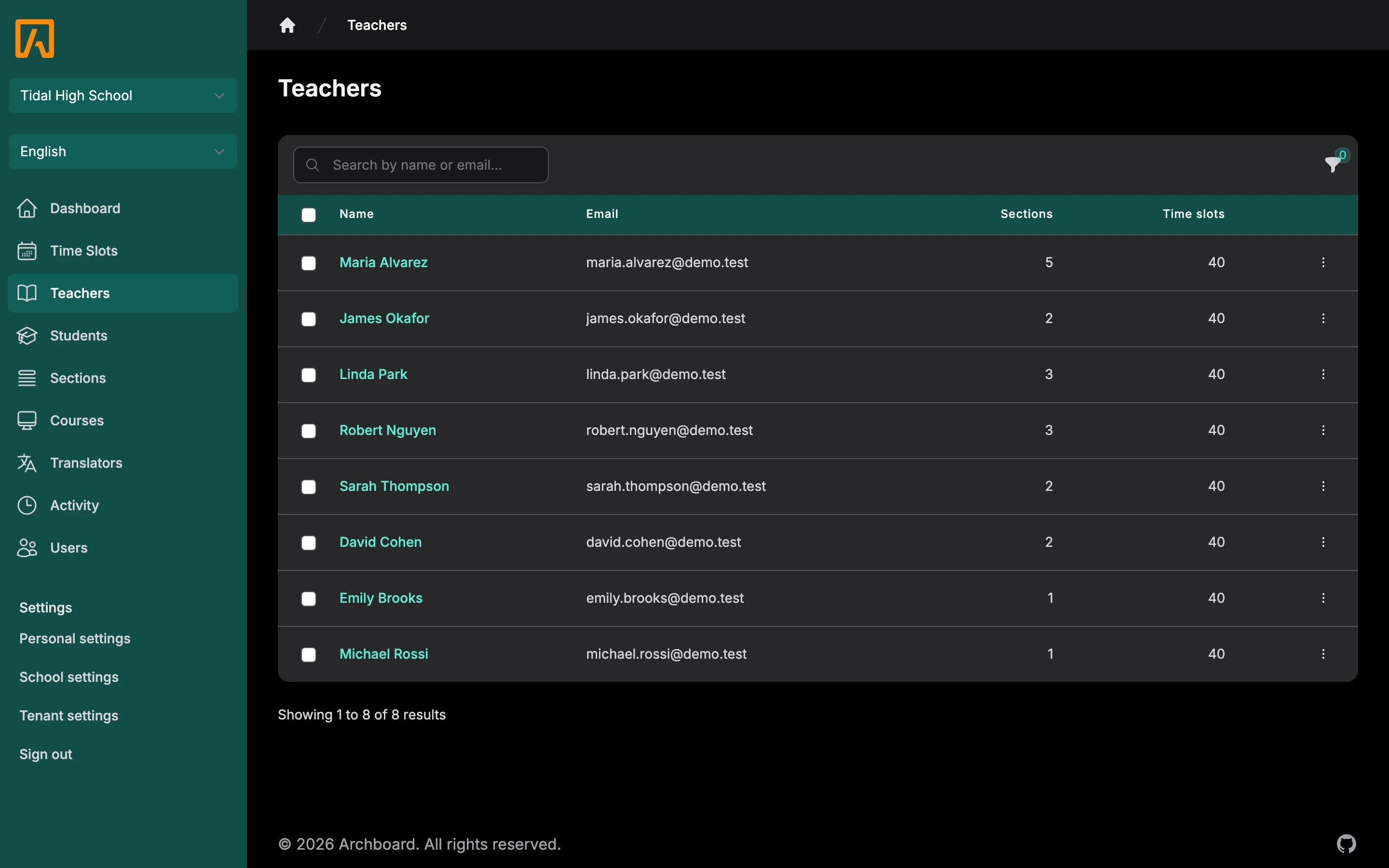
From here you can:
- check teachers and select Actions, then Create time slots to start a batch;
- check teachers and select Disable booking or Enable booking, which controls whether they are included in new batches;
- use a teacher’s row menu to View them, Edit time slots, Edit permissions or Sync from SIS.