
Users and permissions
The Users page lists everyone at your current school who is synced from your SIS: staff, contacts (guardians) and students. From there you can view a user’s calendar, turn booking on or off for them, and edit their permissions. Permissions decide what each person can see and change; most are granted per school, a few apply to the whole district.
Who this is for
Section titled “Who this is for”District administrators, and school staff with the Edit user permissions permission.
Before you start
Section titled “Before you start”- To open the Users page you need View list on Users for the school, and View to open a user’s page. Without the permission the page is refused, even by direct address.
- To change permissions you need Edit user permissions.
- Permissions you grant apply to your current school. To grant permissions at another school, switch to it first (see Concepts).
How permissions work
Section titled “How permissions work”Tidal PTC uses roles and permissions:
- The first user created during installation gets the district admin role, which has every permission in every active school.
- Everyone else starts with no admin permissions. Users come from your SIS; you grant permissions to them individually on the permissions page.
- Teachers who have sections assigned in the SIS can own time slots without any extra permission.
Most permissions are scoped to a school: granting one at School A gives nothing at School B. Two permissions are district-wide: Manages tenancy and Edit tenant settings. See the permissions reference for the full list.
Find a user
Section titled “Find a user”- Select Users in the navigation.
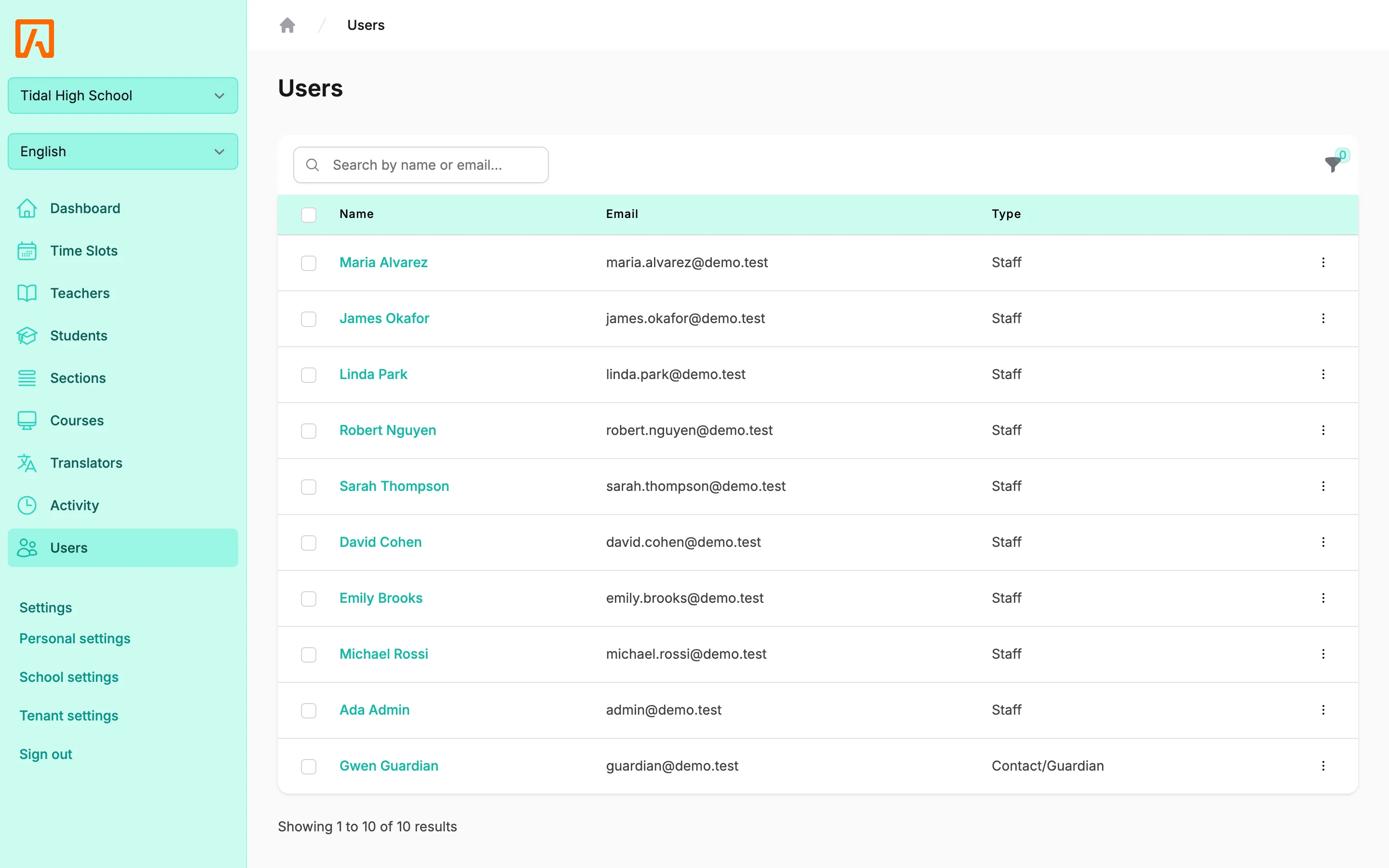
- Search by name or email, or open the filters to filter by First name, Last name or User type, then select Apply filters.
- Select a name to open the user’s page. It shows their time slots on a calendar in your timezone.
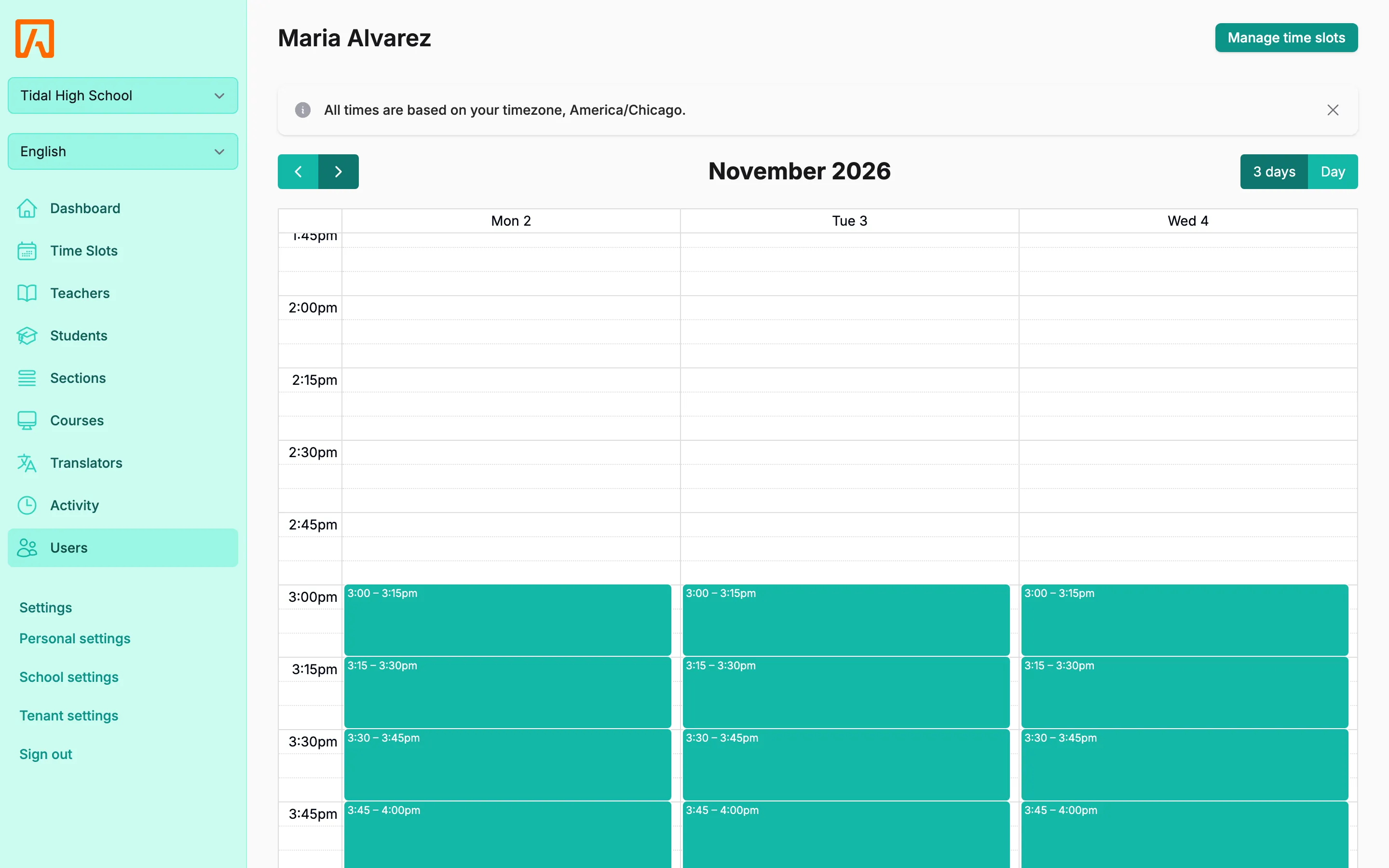
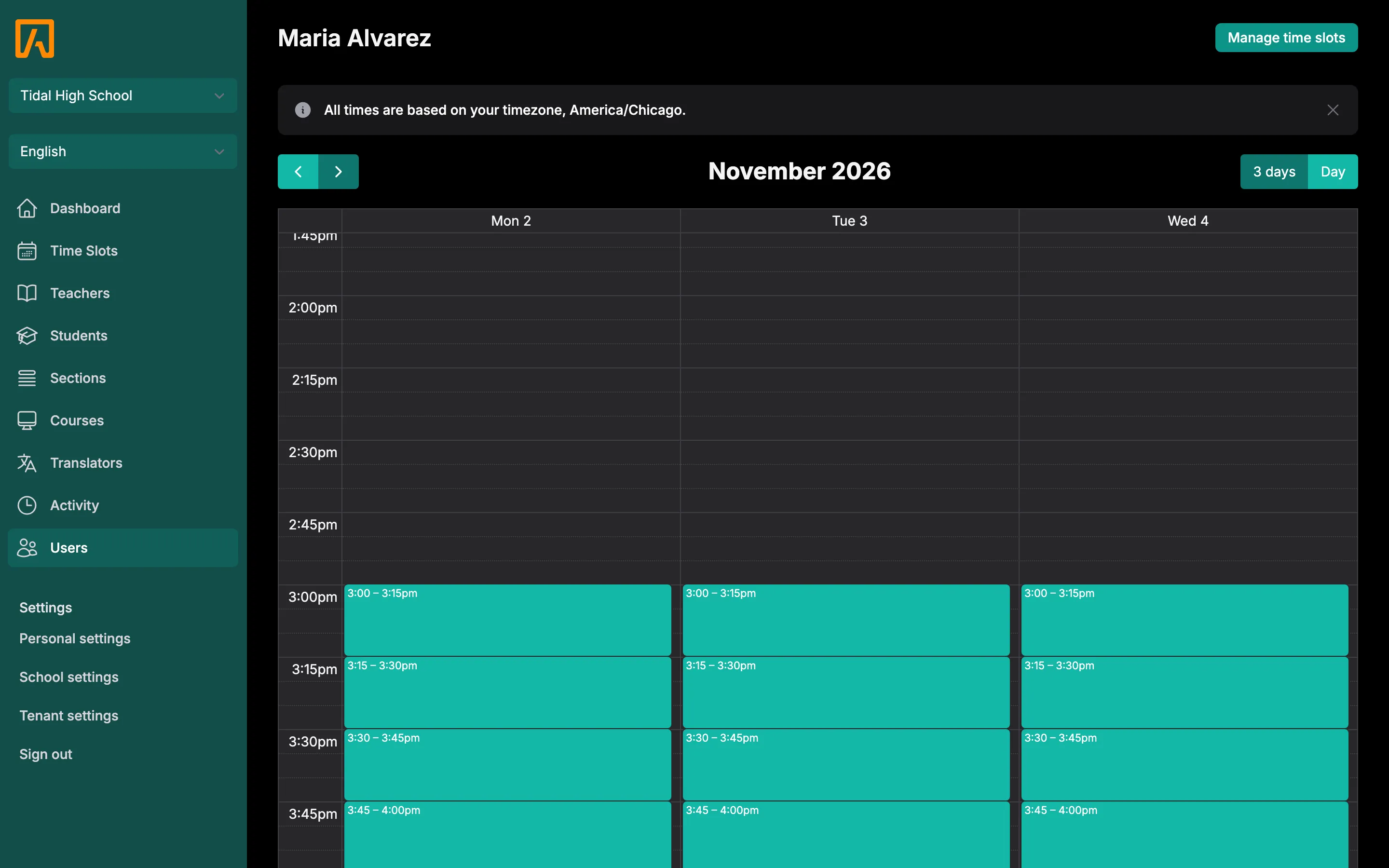
If the user can own time slots, their page has a Manage time slots button. See Time slots and batches.
Turn booking on or off
Section titled “Turn booking on or off”A user with booking disabled shows a Booking disabled label, and their sections show the label next to the teacher. When you create time slots for a batch of teachers, users with booking disabled are skipped. Time slots they already have are not affected. To stop families booking for particular classes, disable booking on the section or course instead (see Directory).
- For one user, open the row’s menu and select Disable booking or Enable booking.
- For several, check their rows, open Actions above the table and select Disable booking or Enable booking.
You need Update on Users to change booking status.
Edit a user’s permissions
Section titled “Edit a user’s permissions”- On the Users page, open the user’s row menu and select Edit permissions.
- Check or uncheck permissions. Each change saves as soon as you click it; there is no save button.
The page has two parts.
General Permissions
Section titled “General Permissions”This part only appears if you have Manages tenancy yourself. It holds the district-wide permissions:
| Permission | What it allows |
|---|---|
| Manages tenancy | Full access to the entire tenancy with full permissions for everything. |
| Edit tenant settings | Edit all tenant settings. |
School Permissions
Section titled “School Permissions”These apply to your current school only.
- Grant all permissions for this school gives the user full access at this school.
- Edit school settings: edit all school settings.
- Edit user permissions: open this page and change other users’ permissions.
- Own time slots: the user can have reservable time slots even without assigned sections.
Below these, each type of record has its own block: Users, Courses, Sections, Students and Time Slots. Check Full access for everything on that record type, or pick individual permissions:
| Permission | Meaning |
|---|---|
| View list | See the listing page. |
| View | See an individual record. |
| Create | Create records. Time slots only. |
| Update | Change records. |
| Delete | Delete records. Time slots only. |
Users, courses, sections and students come from the SIS, so they only offer View list, View and Update.