

Creating your time slots
Teachers can add their own conference time slots by dragging across a calendar, as long as the school has opened slot editing for teachers. This page covers creating slots, setting their details, and changing or removing them.
Who this is for
Section titled “Who this is for”Teachers who set their own conference availability. If your school office creates slots for you, see Time slots and batches instead.
Before you start
Section titled “Before you start”- Your school must have an editing window open. An administrator sets Open slot editing for teachers and Close slot editing for teachers in school settings. Outside that window the Manage time slots link does not appear.
- You need to teach at least one section at the school, or have the permission to own time slots.
- Times on the calendar use the Timezone in your Personal settings. The page reminds you which one with “All times are based on your timezone”.
- Optionally set your Room and Default meeting URL in Personal settings. The room is used as the conference location, and the default meeting URL as the join link for online conferences, when a time slot has none of its own.
Open your time slot calendar
Section titled “Open your time slot calendar”- On the dashboard, select Manage time slots in the My conferences card. You can also open Time Slots in the sidebar and choose Manage my time slots from the actions menu.
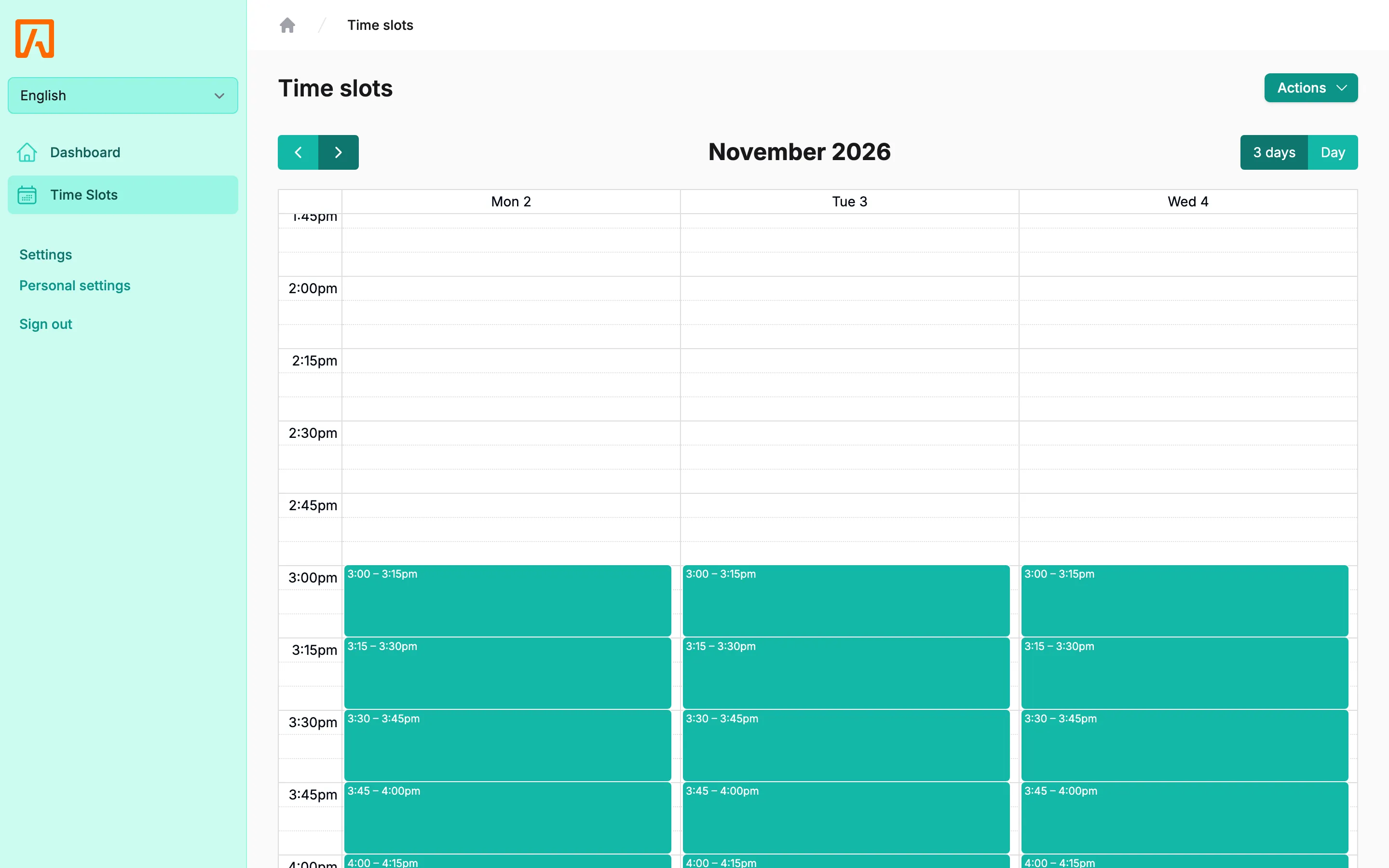
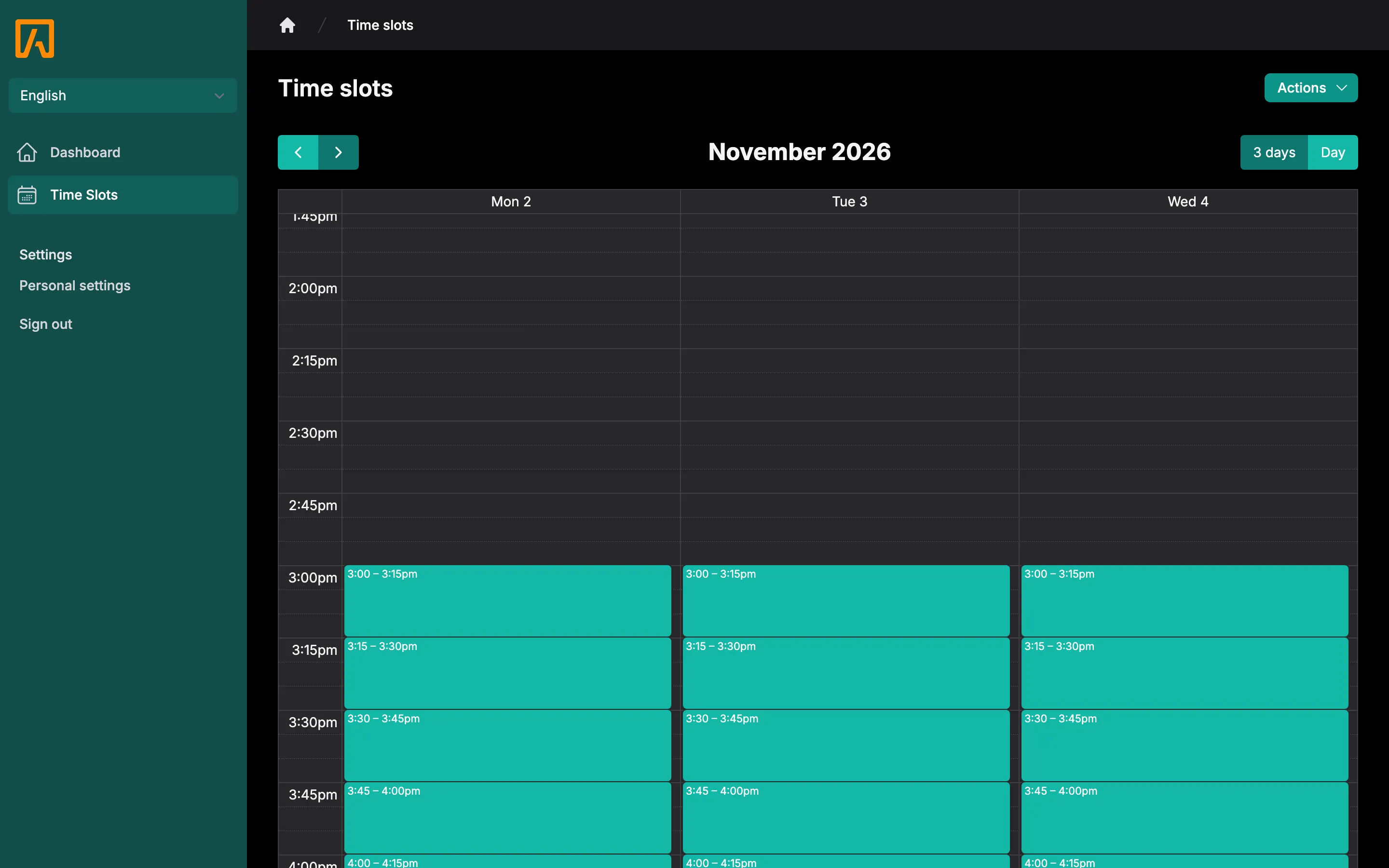
- The Manage my time slots page shows a Default settings card and your calendar. The calendar shows 3 days at a time; switch to a single day with the toolbar and use the arrows to move between dates.
Set the default details
Section titled “Set the default details”The Default settings apply to every slot you create on this page. Select Show time slot details or Hide time slot details to toggle the form.
| Field | What it does |
|---|---|
| Teacher notes | A note for families about the slot. Families see it when booking, on their dashboard and in reservation emails. |
| Location | The room or place of the meeting. If empty, your Room from personal settings is used. Hidden when Online meeting is checked. |
| Allow online meetings | Lets families ask for this slot to be online. Only shown when the school allows online meetings. |
| Online meeting | Makes the slot online-only. Shown after Allow online meetings is checked. |
| Meeting URL | The video call link for an online slot. Required unless you have a Default meeting URL in personal settings. |
| Allow contacts to reserve the time slot | If unchecked, only admins can book the slot for a family. |
| Allow translator request | Lets families ask for a translator. Only shown when the school allows translator requests. |
Create time slots
Section titled “Create time slots”- Set the default details you want.
- On the calendar, click and drag from the start time to the end time of a slot. The calendar moves in 5-minute steps.
- Release the mouse. The slot is saved right away with the default details.
- Repeat for each conference slot you want to offer.
You cannot drag a new slot over an existing one, and slots must start in the future.
Edit or delete a slot
Section titled “Edit or delete a slot”- Click a slot on the Manage my time slots calendar to open Edit time slot.
- Change any of the details, then select Save.
- To remove the slot, select Delete.
To change only the time of an open slot, drag it to a new time or drag its bottom edge to resize it.