
Quick tour
This tour walks through the main screens of Tidal PTC so you know what to expect before you set anything up. What you see depends on your role and permissions: the sidebar only shows the pages you can use. The screenshots come from the demo data.
Signing in
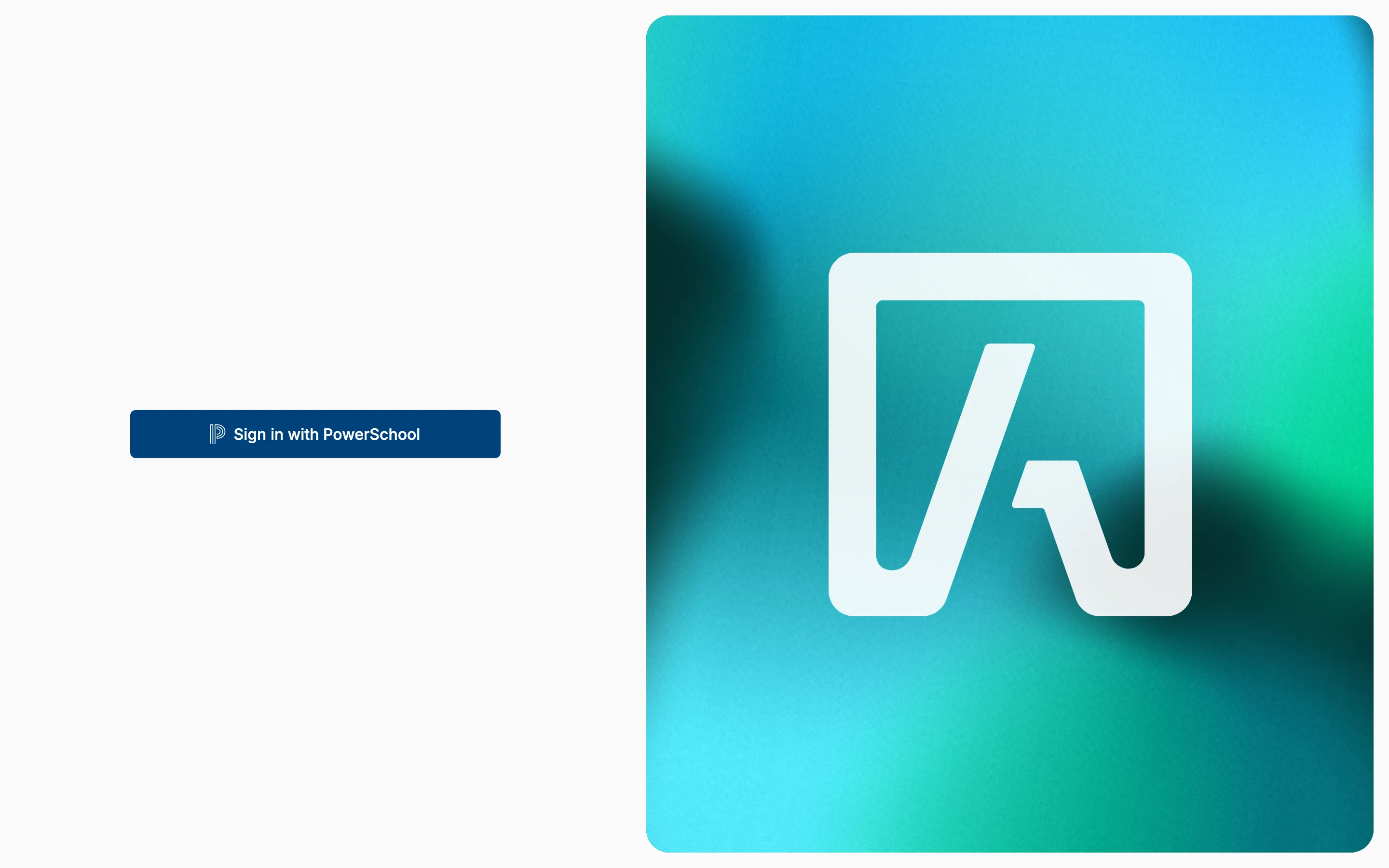
Section titled “Signing in”Everyone signs in with their PowerSchool account: from the Tidal PTC link inside PowerSchool, or with Sign in with PowerSchool on the login page. Districts can also allow email and password sign-in, but PowerSchool is the recommended way.
Choosing a school
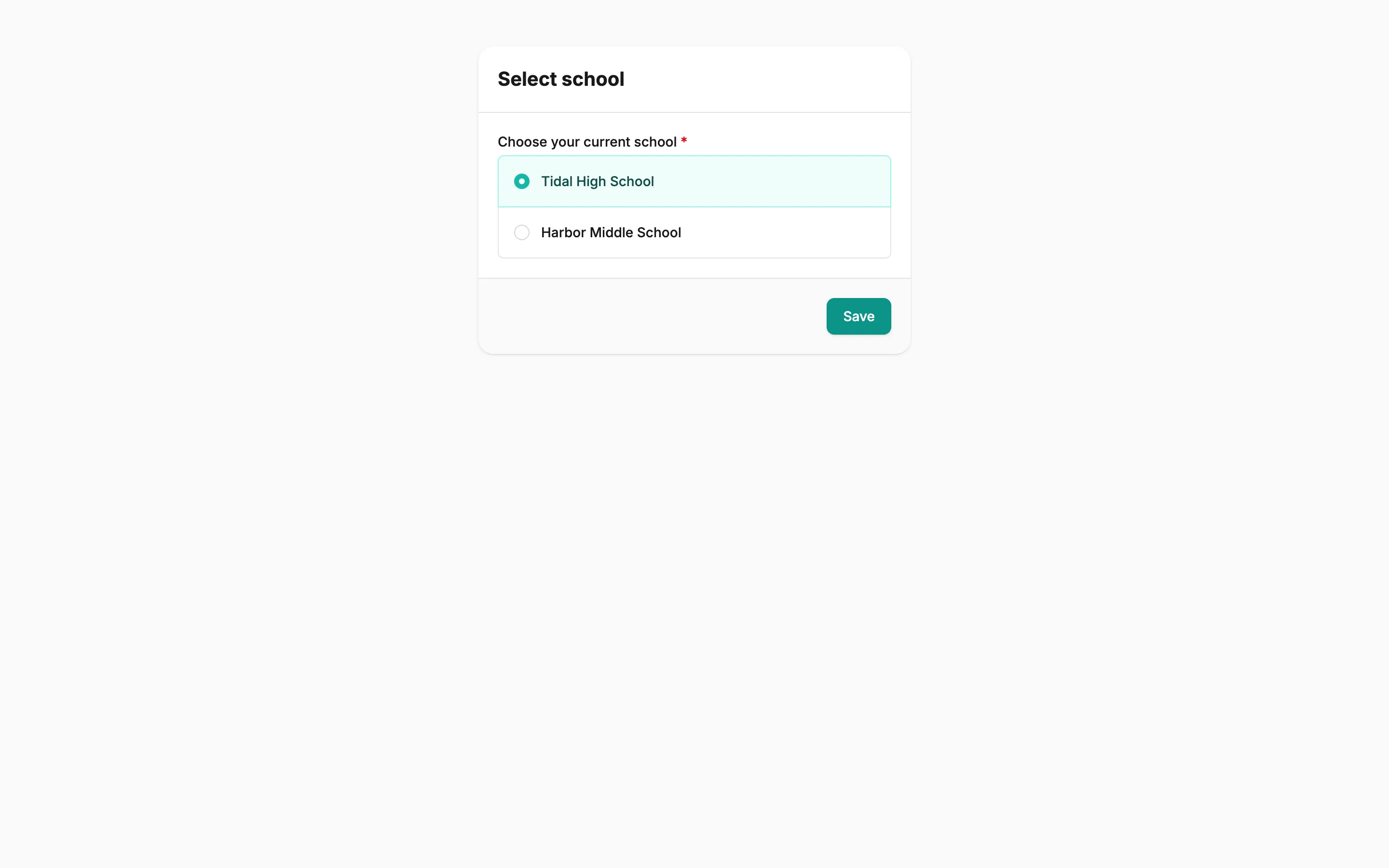
Section titled “Choosing a school”If you have access to more than one school, you pick one on the Select school page. You can switch later from the Current school menu at the top of the sidebar. See Concepts.
Dashboard
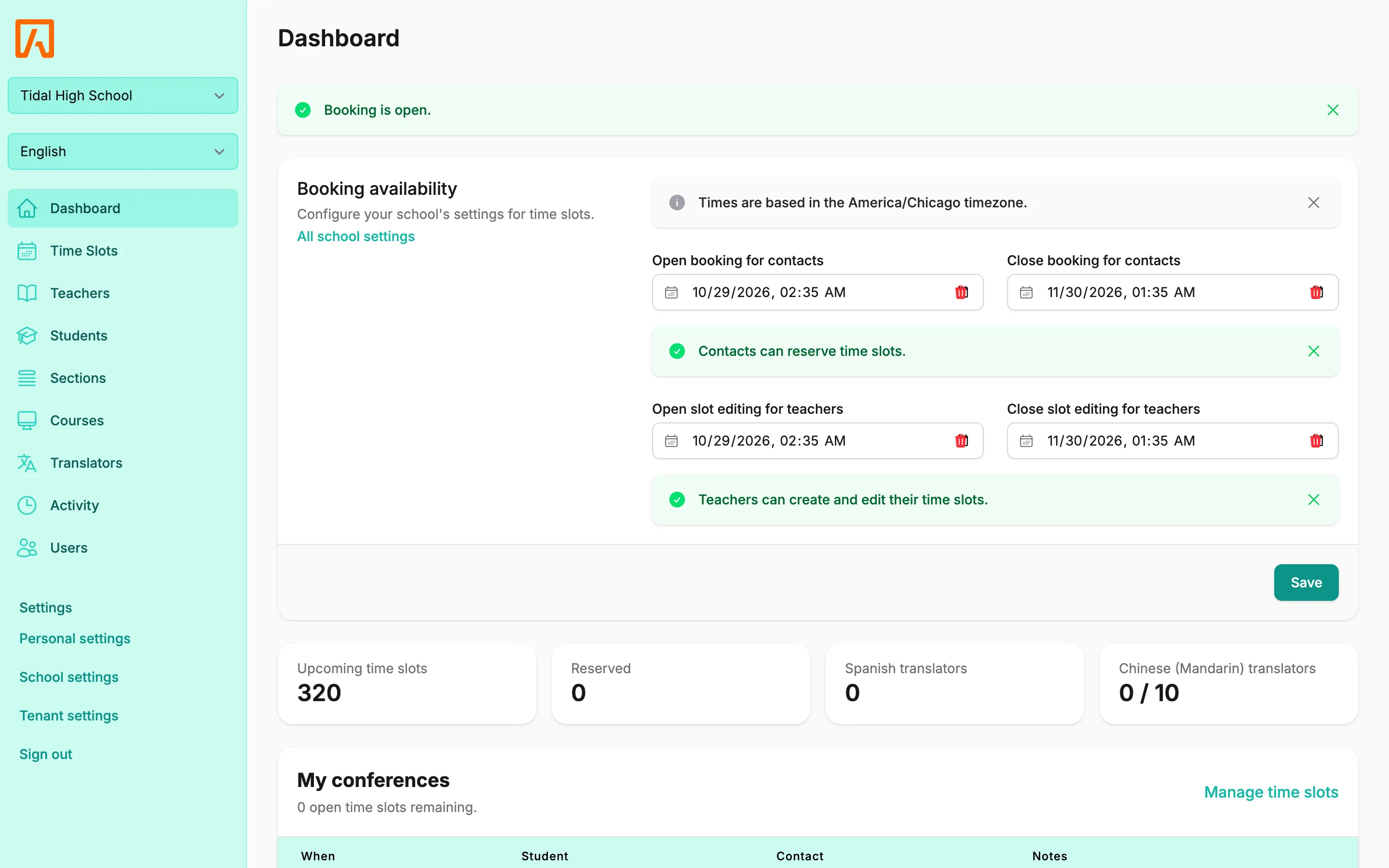
Section titled “Dashboard”Everyone lands on the Dashboard, but it looks different for each kind of user.
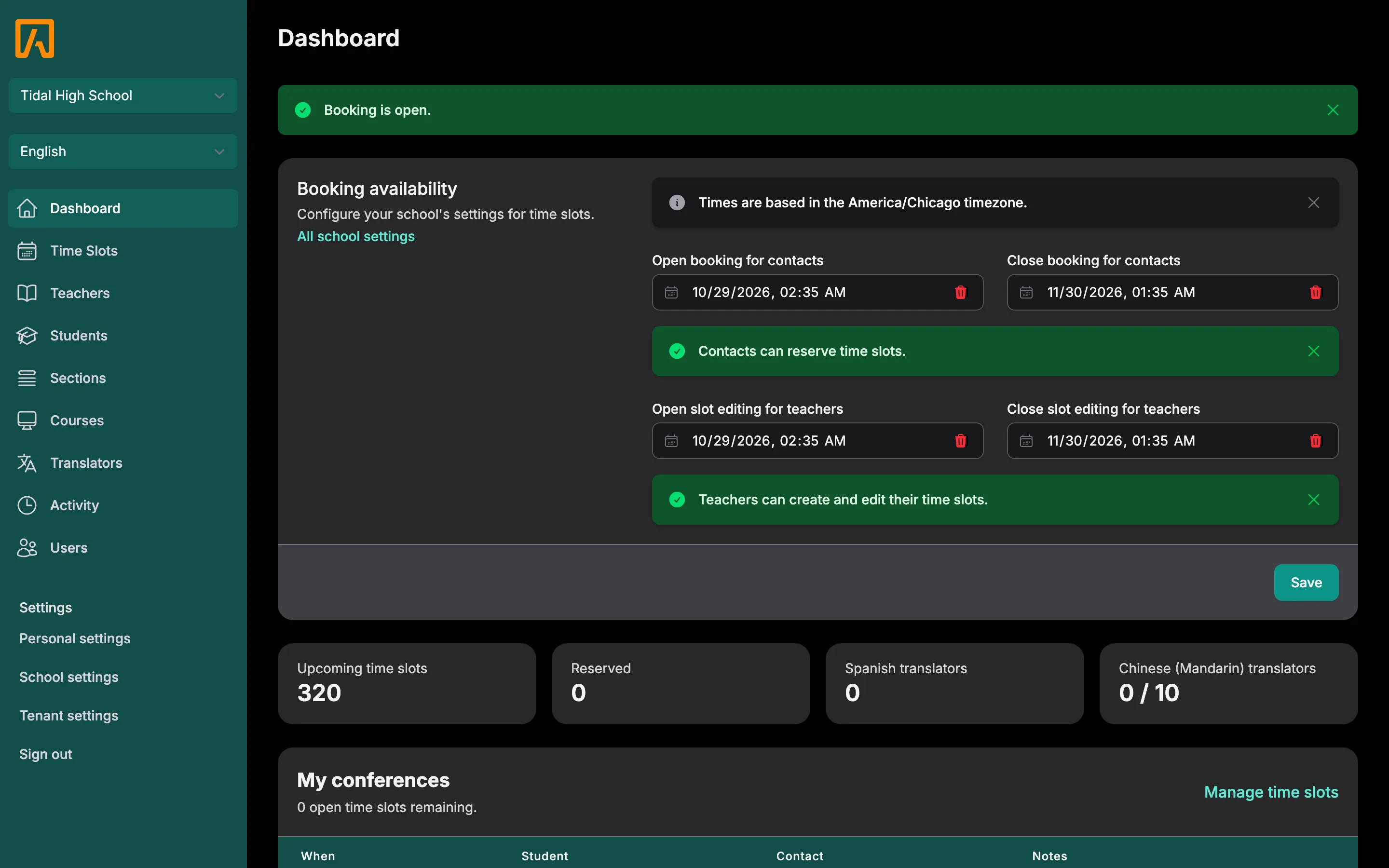
Admins see whether booking is open, the school’s booking settings, and counts of Upcoming time slots, Reserved slots and translators by language.
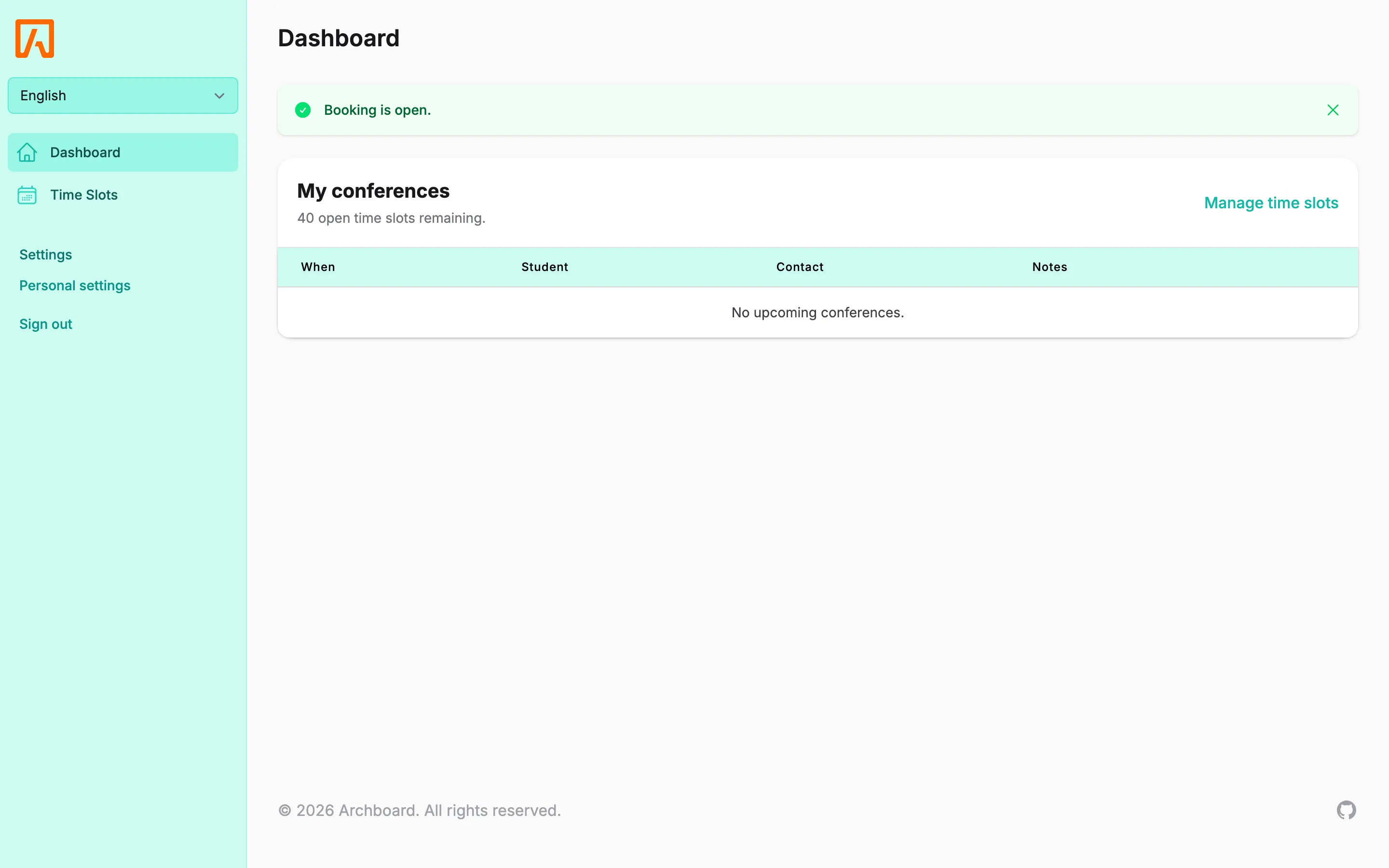
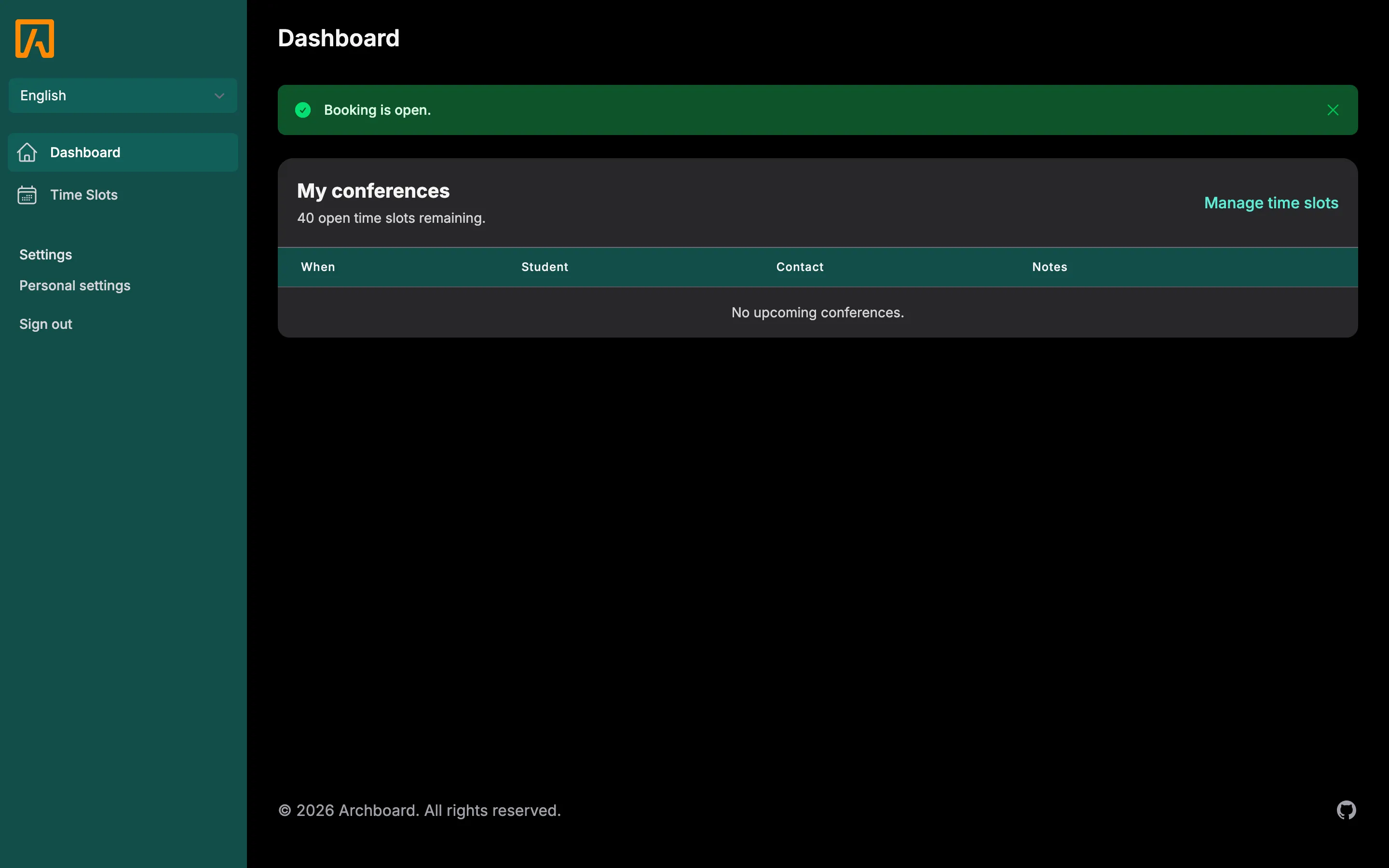
Teachers see My conferences, a list of their upcoming booked conferences, with a Manage time slots link when they can create their own slots.
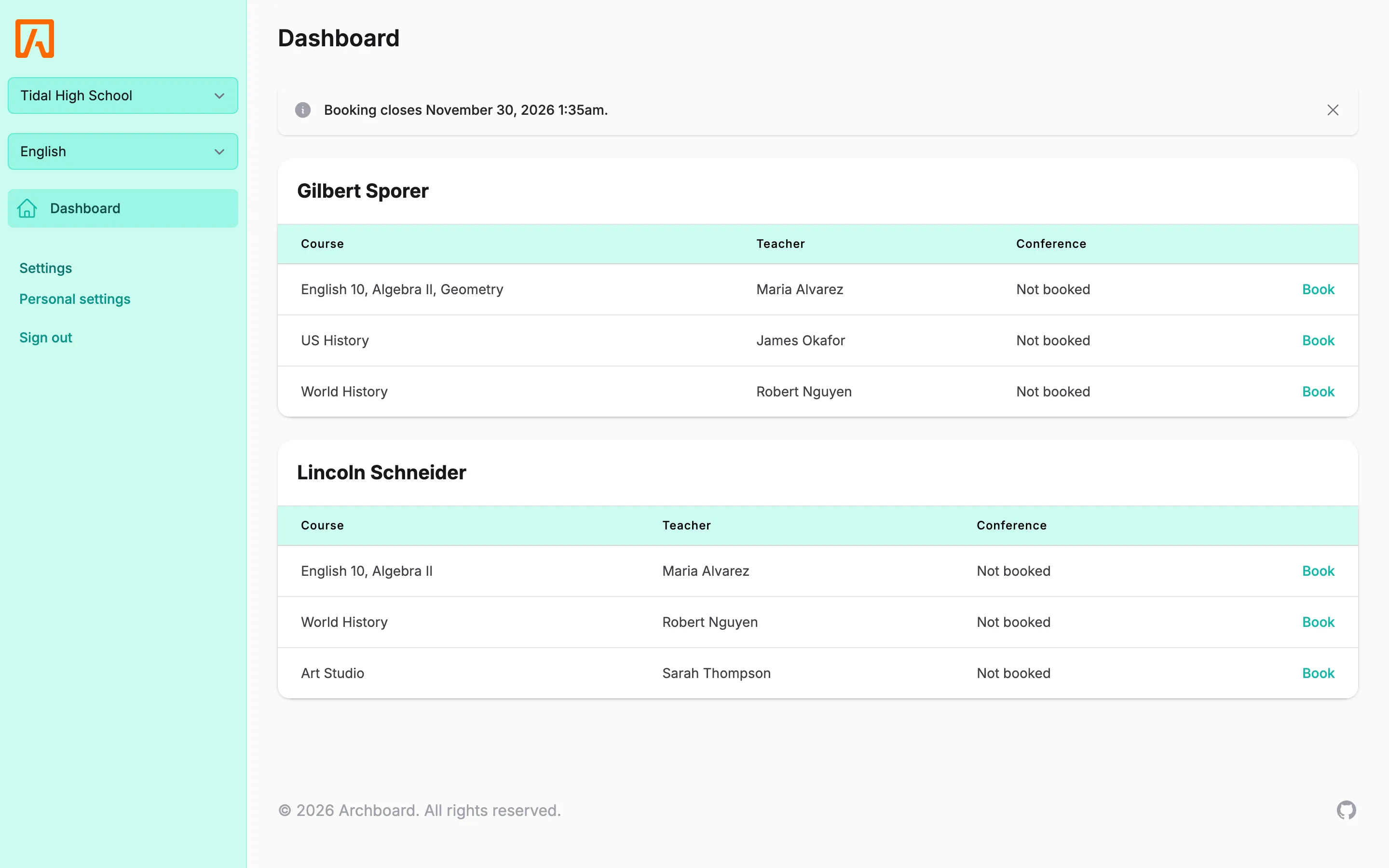
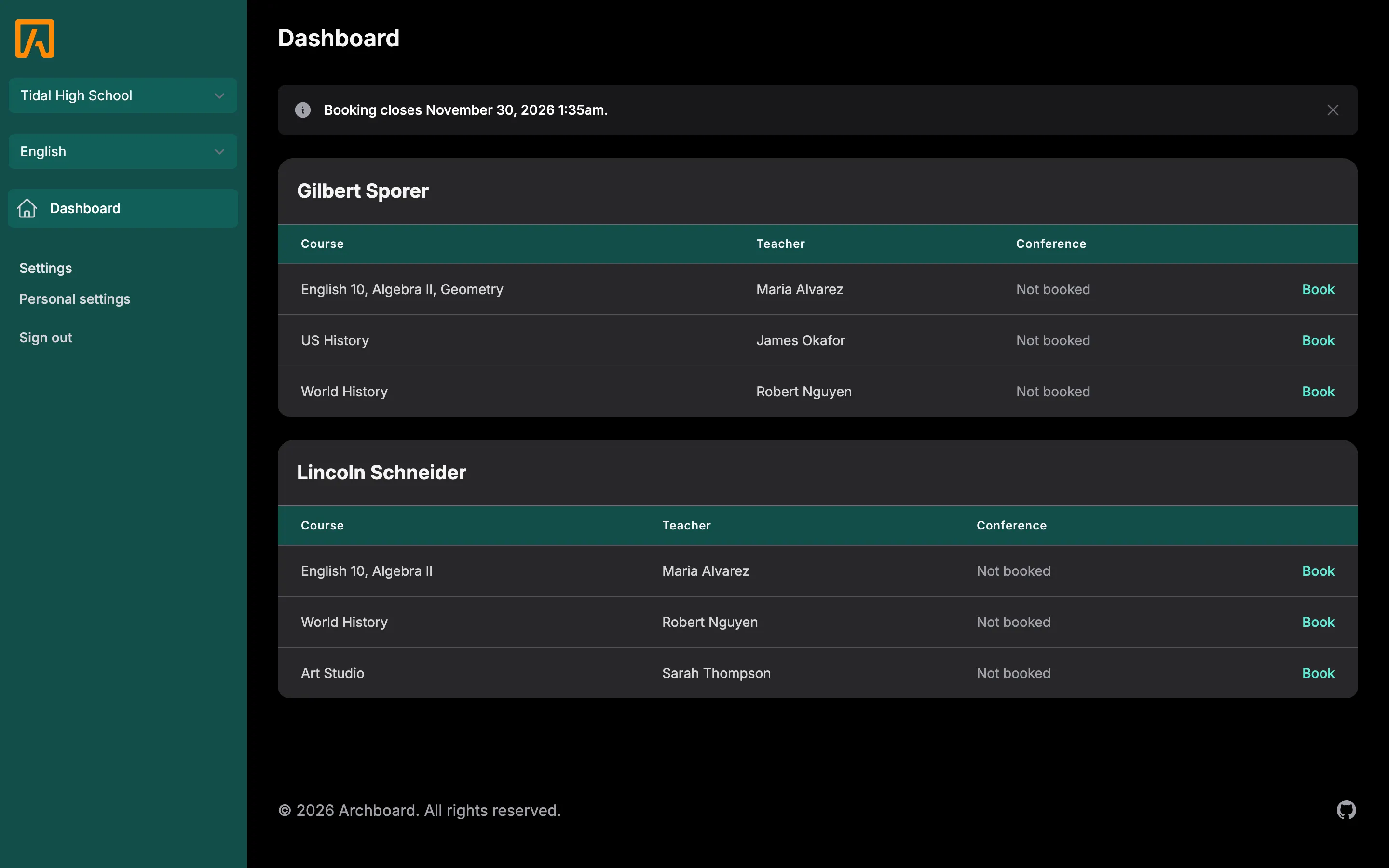
Guardians see Your conferences and, for each student, a list of teachers with a Book link for each one that has open time slots.
Time slots
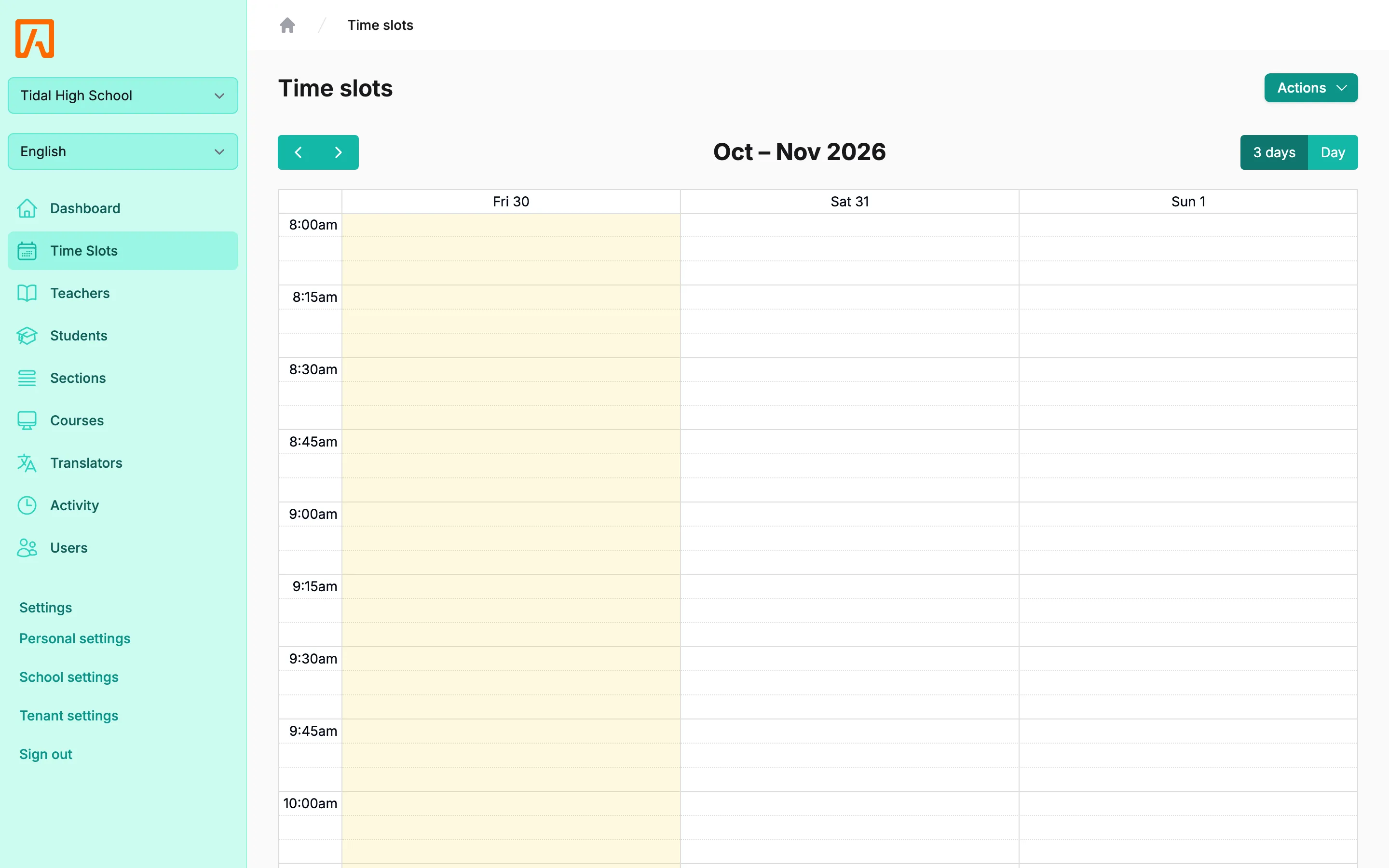
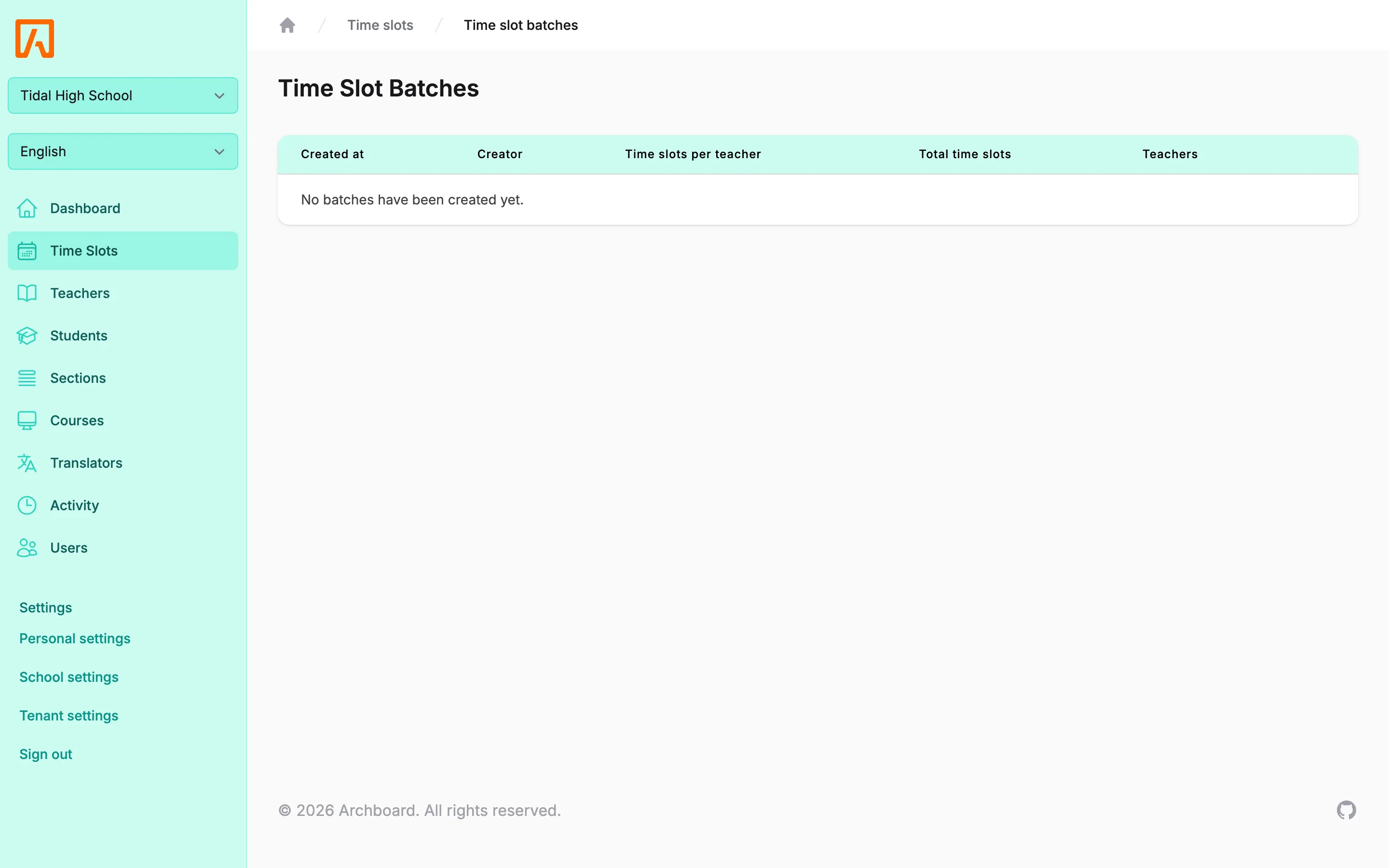
Section titled “Time slots”Time Slots shows the school’s conference slots on a calendar. The actions menu links to Manage batches, where staff create many slots at once, and Manage my time slots, where users who own slots create their own. See Time slots.
Directory
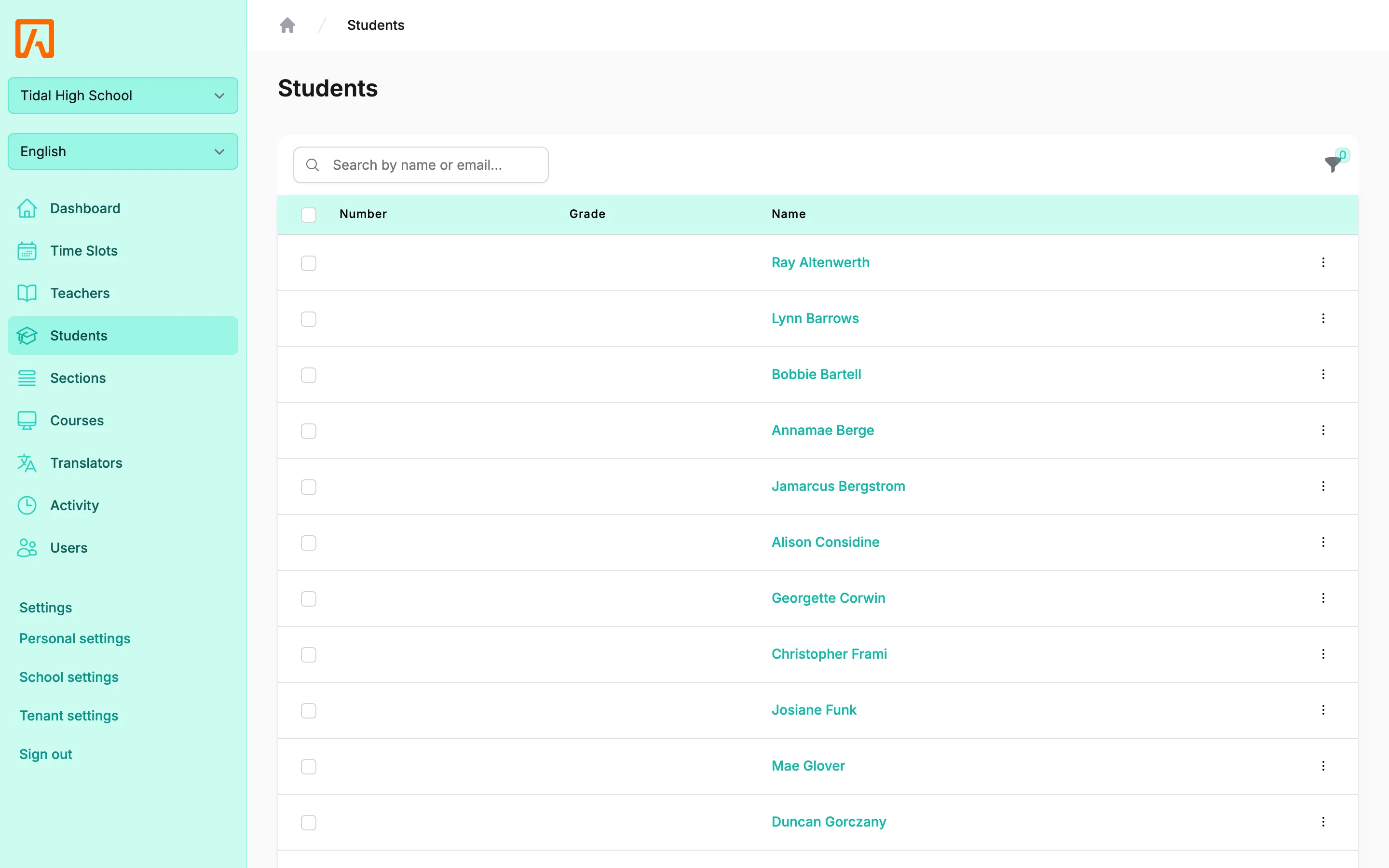
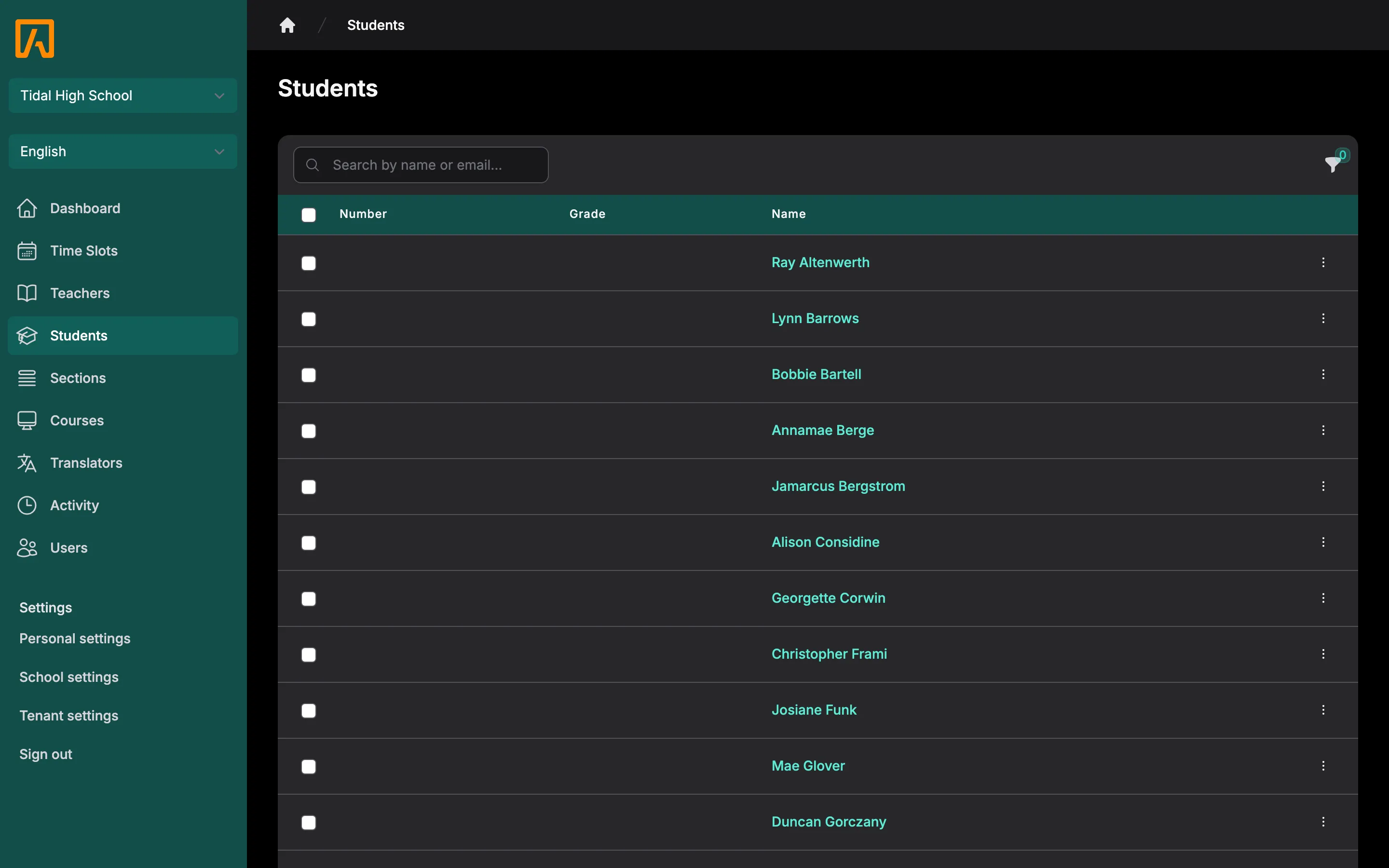
Section titled “Directory”Students, Sections, Courses, Teachers and Users list the people and classes synced from PowerSchool. From a student’s page, staff can book a conference on behalf of a family. See Directory.
Translators
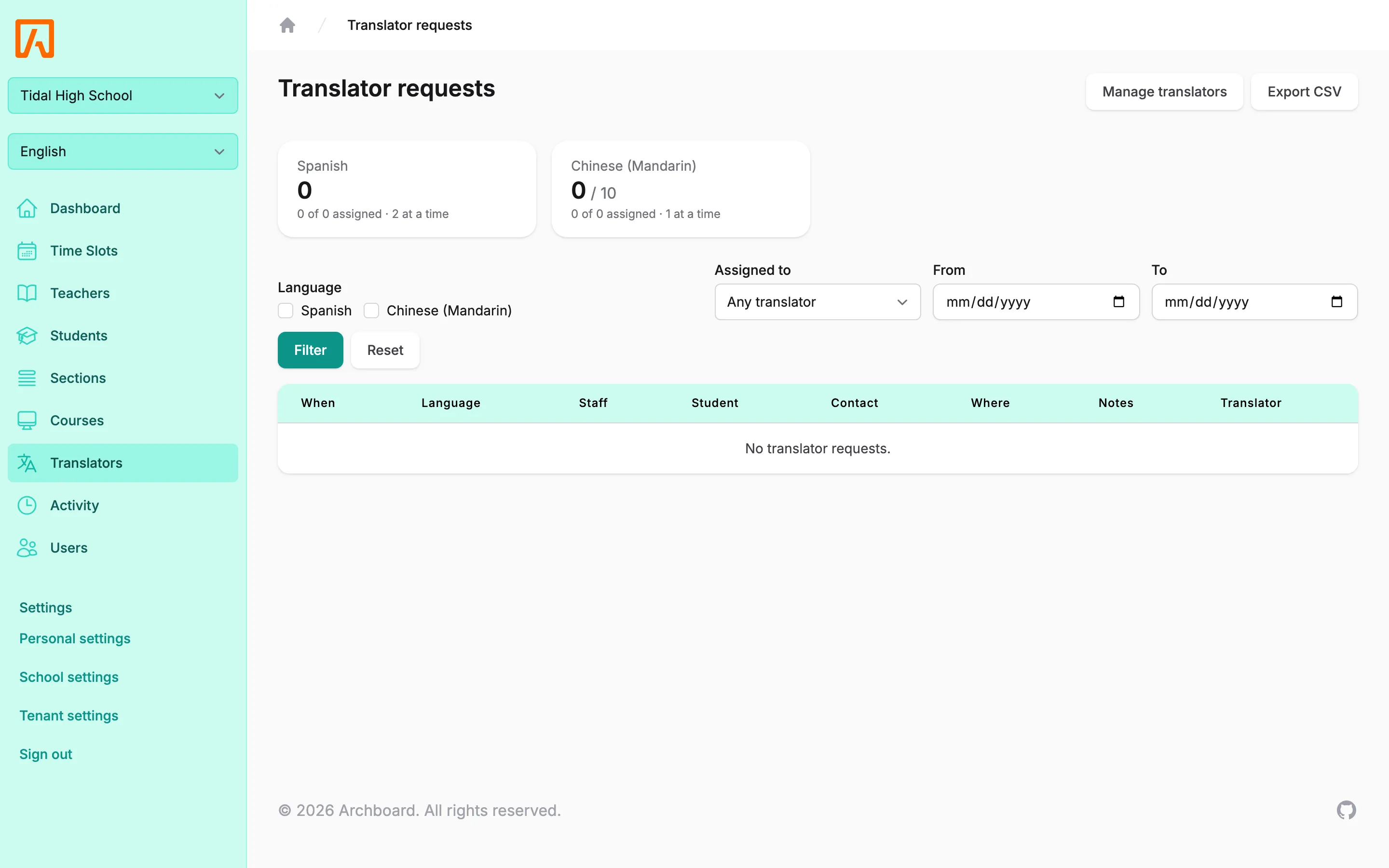
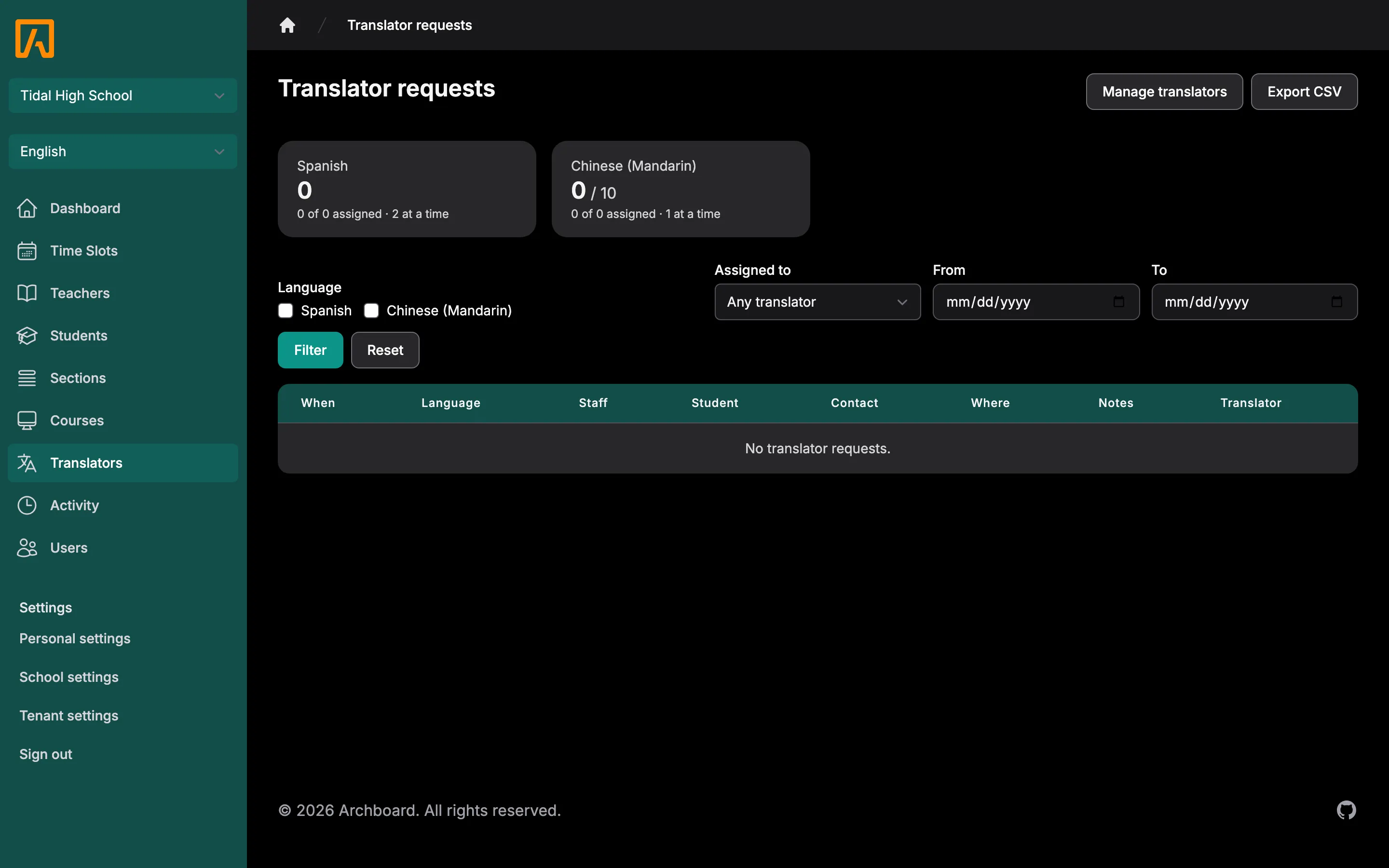
Section titled “Translators”When a school allows translator requests, Translators lists the conferences where families asked for one, so staff can assign a translator. See Translators.
Activity
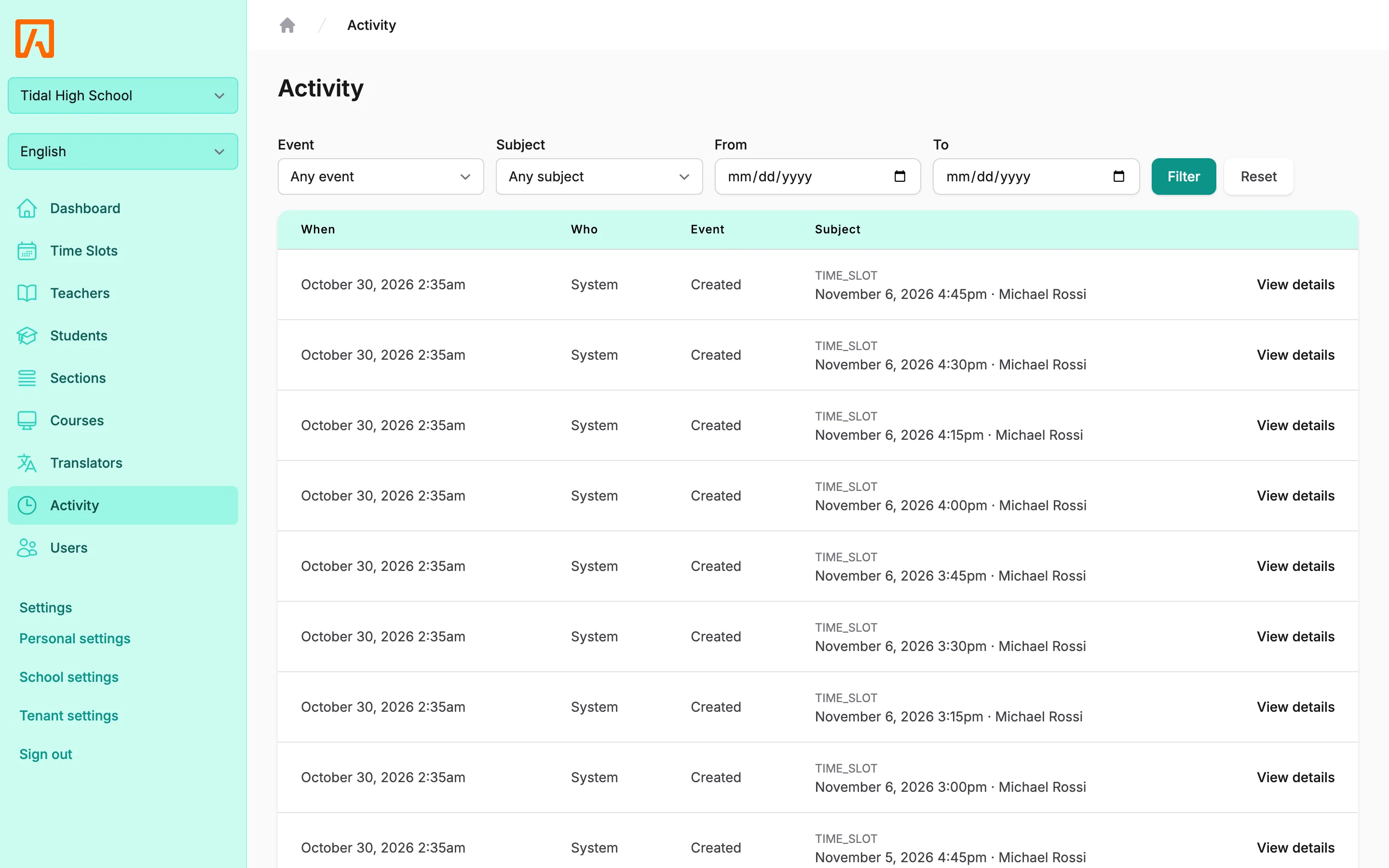
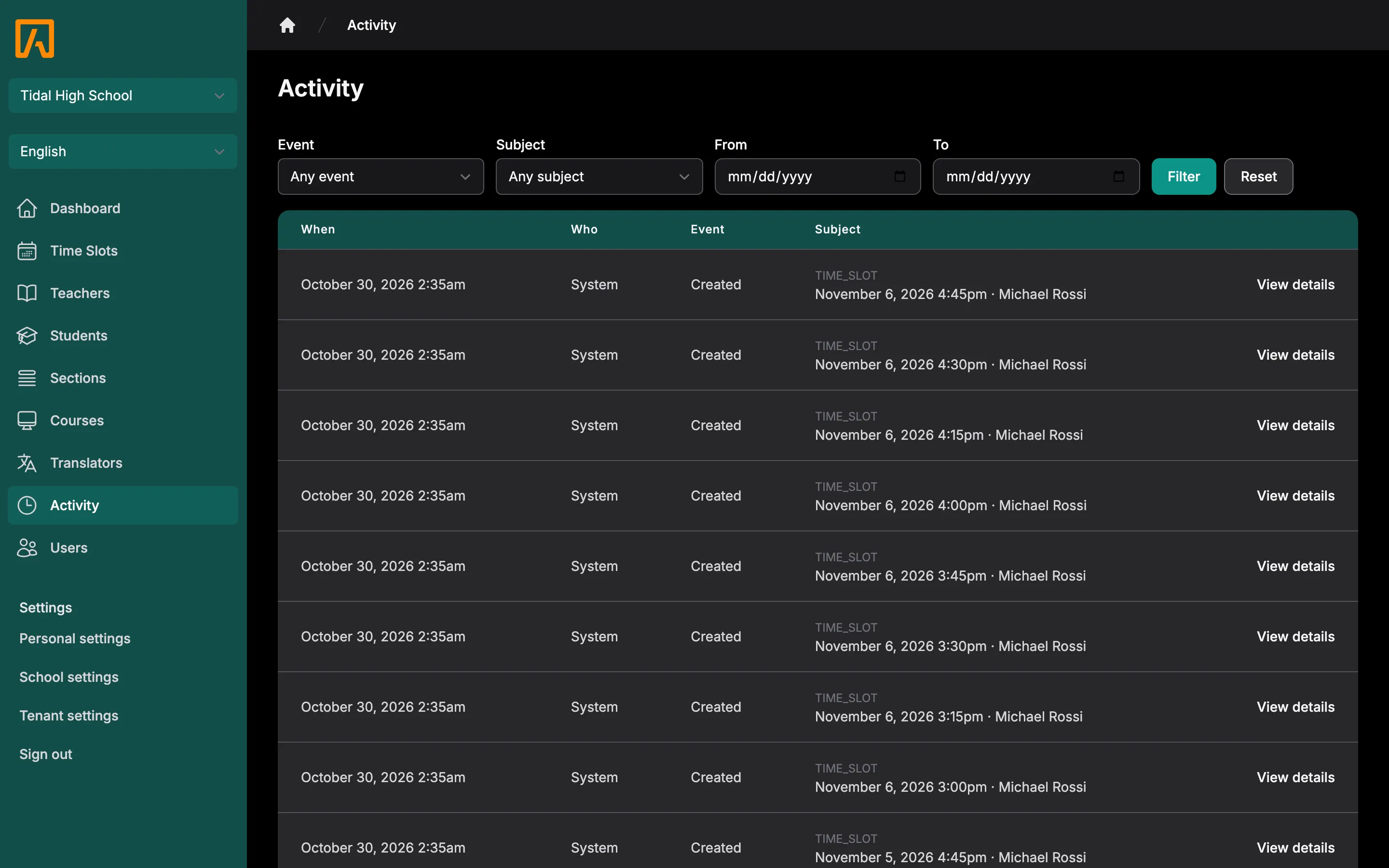
Section titled “Activity”Activity shows a log of bookings and time slot changes. See Activity log.
Settings
Section titled “Settings”Under Settings in the sidebar:
- Personal settings: your name, email, timezone, language, time format and Notification preferences. Everyone has this.
- School settings: booking rules, languages and sync for the current school. See School settings.
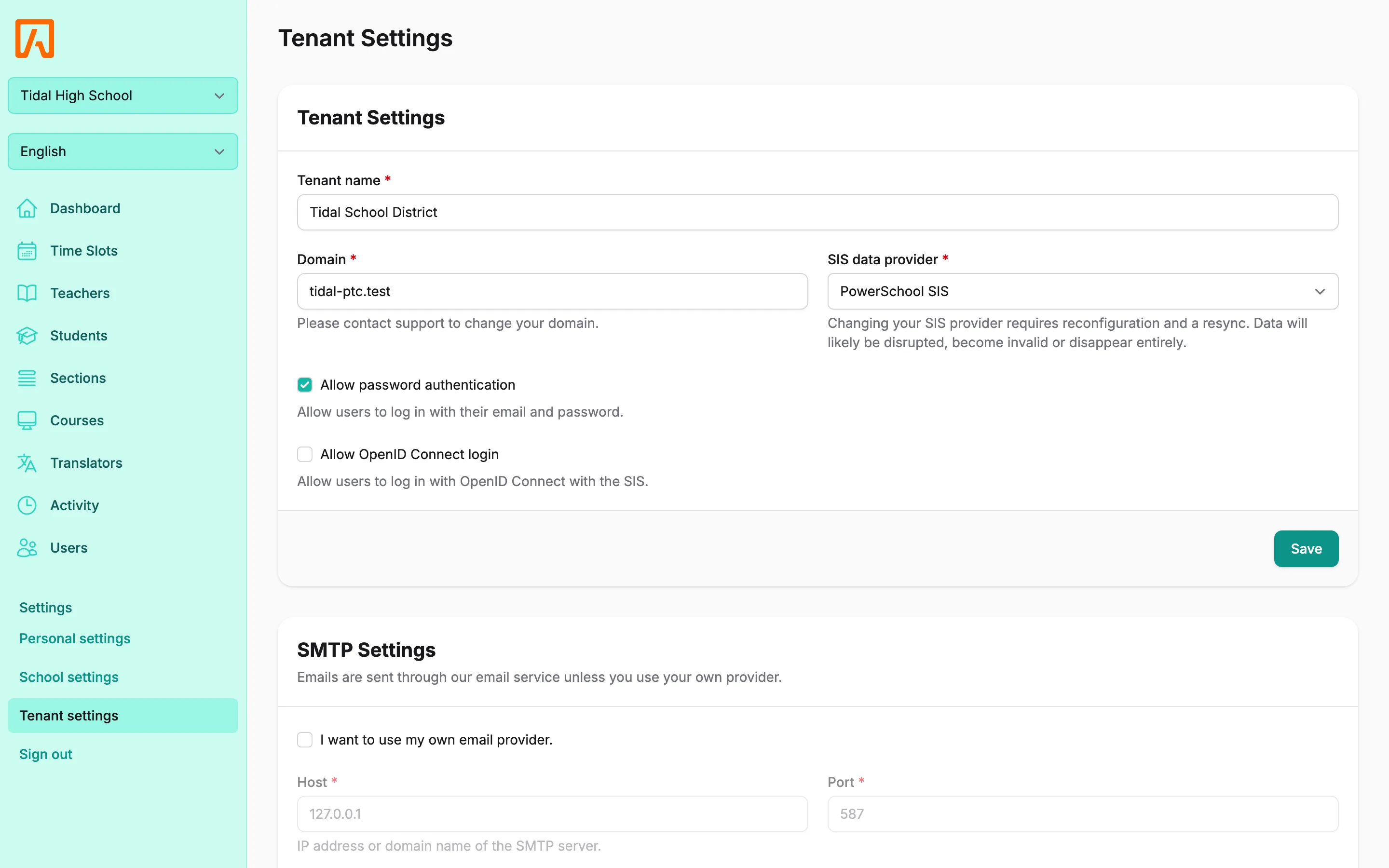
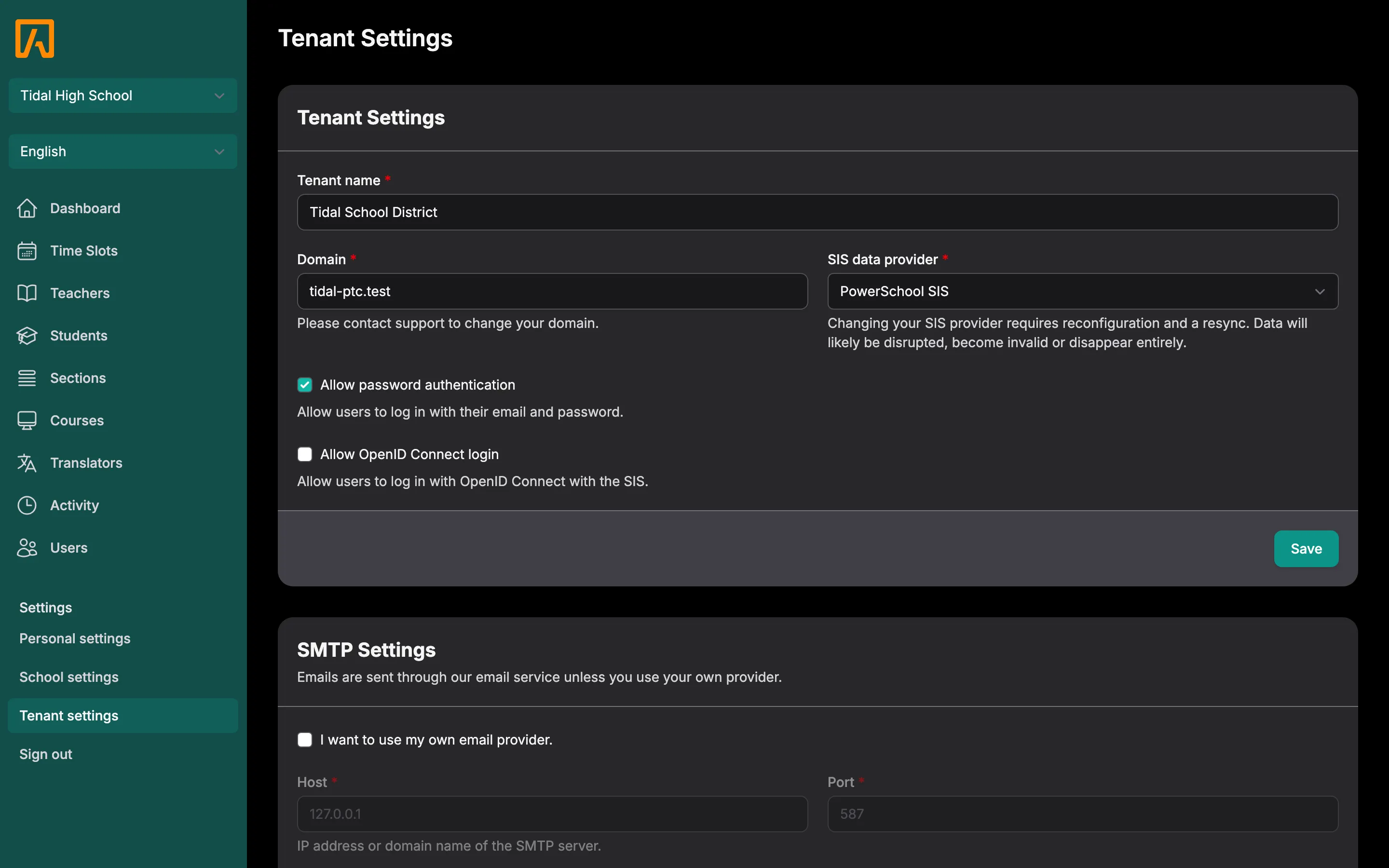
- Tenant settings: PowerSchool, email, the PowerSchool plugin and active schools for the whole district. See Tenant settings.