

Tenant settings
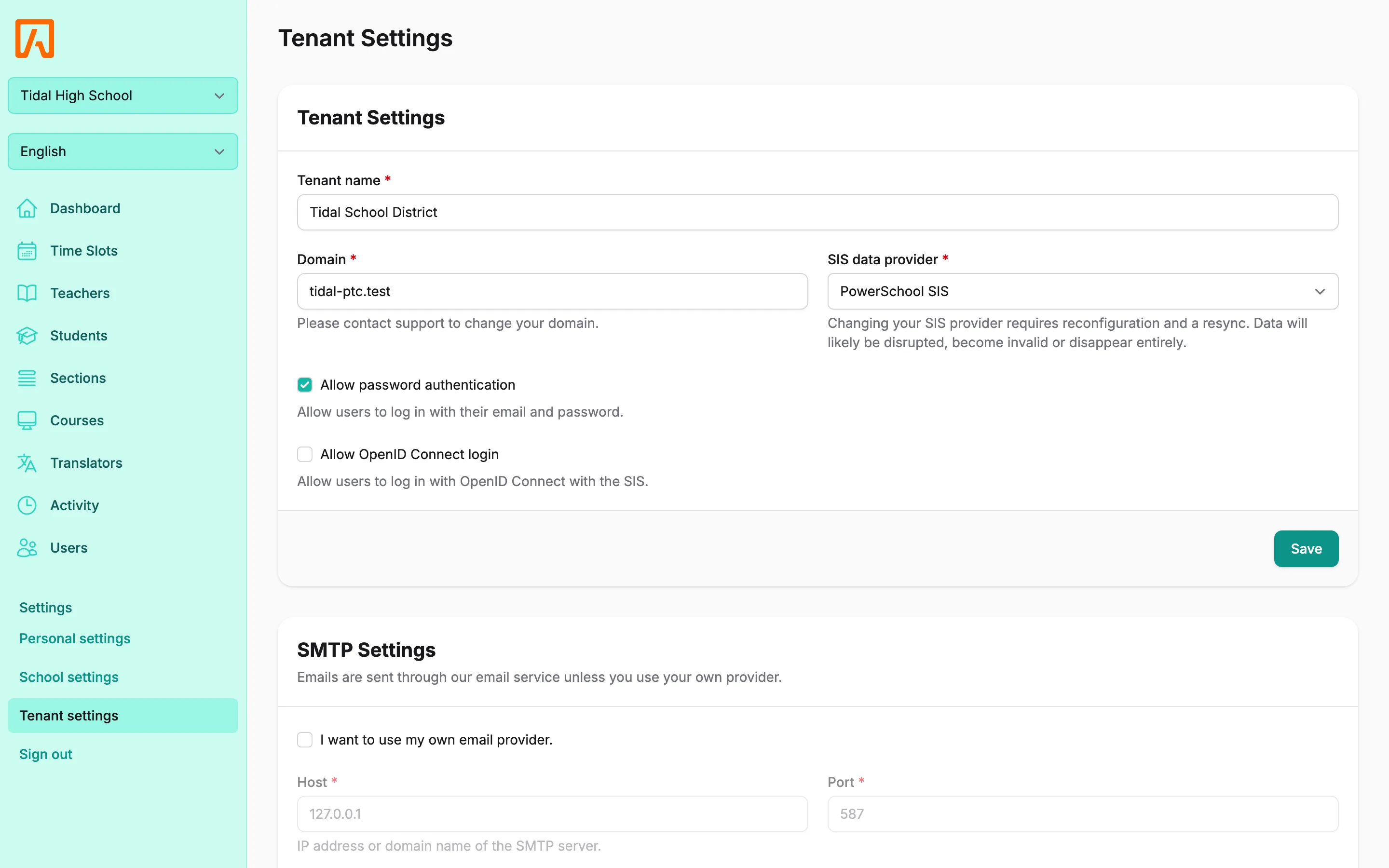
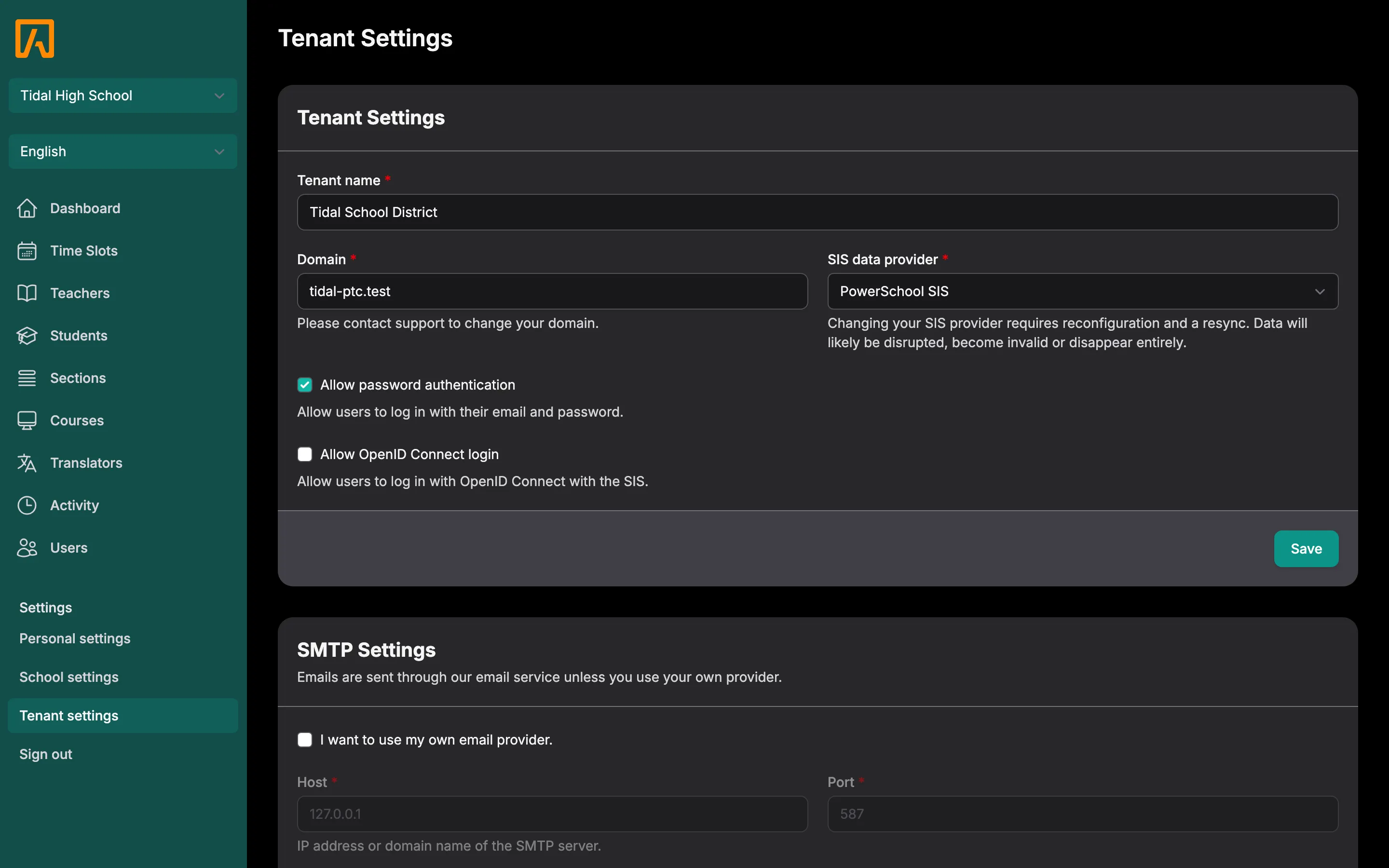
The tenant settings page holds the settings that apply to your whole district (the tenant): its name and domain, the SIS that provides your data, which sign-in methods are allowed, the SMTP server used for email, the PowerSchool plugin download, and which schools are active. This page walks through each card on the page and what saving it changes.
Who this is for
Section titled “Who this is for”District administrators, or anyone granted the Edit tenant settings permission.
Before you start
Section titled “Before you start”- You need the Edit tenant settings permission. District admins have every permission. See Users and permissions.
- Open the page from the user menu: Tenant settings (the address is
/settings/tenant/edit).
Update the district details
Section titled “Update the district details”The Tenant Settings card has these fields:
| Field | What it does |
|---|---|
| Tenant name | Your district’s name. Required. |
| Domain | The domain the app is served from. Required and must be unique. On Tidal PTC Cloud this field is read-only: contact support to change it. |
| SIS data provider | The student information system your data comes from: PowerSchool SIS is the only provider available. ClassLink is planned. |
| Allow password authentication | Lets users sign in with their email and password. |
| Allow OpenID Connect login | Lets users sign in with OpenID Connect through the SIS. |
- Change the fields you need.
- Select Save. You see “Settings updated successfully.”
Configure SMTP email
Section titled “Configure SMTP email”Tidal PTC sends booking confirmations, reminders and other notifications by email. The SMTP Settings card sets the mail server for your district.
On Tidal PTC Cloud, emails go through the Cloud email service unless you check I want to use my own email provider. The SMTP fields stay disabled until you check it.
- Fill in the server details:
- Host: IP address or domain name of the SMTP server (required).
- Port: for example
587(required). - Username and Password: if your server requires authentication.
- From name and From address: the sender shown on outgoing email (both required).
- Encryption: TLS, SSL or none.
- Select Save. You see “SMTP settings updated.” The change is recorded in the activity log as “SMTP settings updated”.
- Select Send test to send a test email to your own account’s email address. It reads “If you’re reading this, your email settings are working correctly.”
For provider-specific advice, see Email.
Download the PowerSchool plugin
Section titled “Download the PowerSchool plugin”On self-hosted installs, the PowerSchool plugin card has a Download plugin button. The plugin is built for your current domain, and each download has a higher version number so you can install it over the previous one in PowerSchool. The file is named tidal-ptc-plugin.zip.
The card is not shown on Tidal PTC Cloud. See PowerSchool for installing the plugin.
Choose the active schools
Section titled “Choose the active schools”The Active schools card lists every school synced from your SIS. Only active schools are available in the app: users cannot select or work in an inactive school.
- Check the schools you want to use. Use Select all or Select none to change the whole list.
- Select Save. You see “Schools updated successfully.”
On Tidal PTC Cloud, the card shows how many schools you have selected against your license, for example “3 of 5 licensed schools selected”. You cannot save more schools than your plan covers; the error reads, for example, “Your plan covers 5 schools. Contact us to add more.” See School limits.